Installing idScan software on the Self Entry station
Note: Installation depends on the hardware installed. The following reflects installation for a SnapShell device. When in doubt follow the instructions that accompany the device.
To install idScan:
1. Use the idScan install CD and run the executable.
2. From the next dialog enter the product license key and submit.
3. The install proceeds to select a driver, but if it doesn’t, choose Drivers to get the driver.
4. Choose SnapShell Camera (Windows Vista Compliant) for this device.
5. Install the driver.
6. Plug in the device and install it.
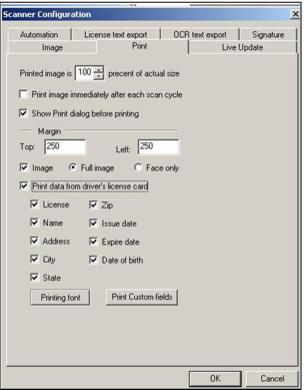
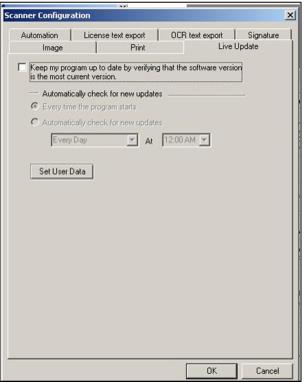
7. Start the IdScanOCR software.
8. Select the
Configuration button with the gears icons.

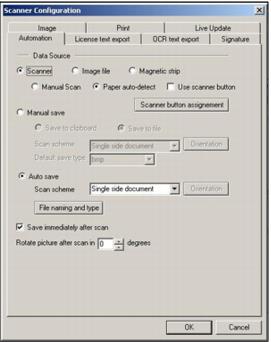
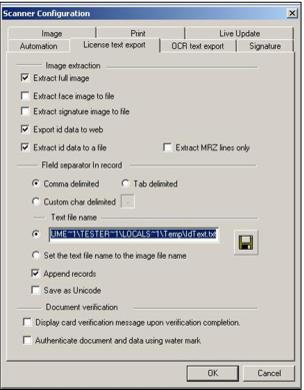
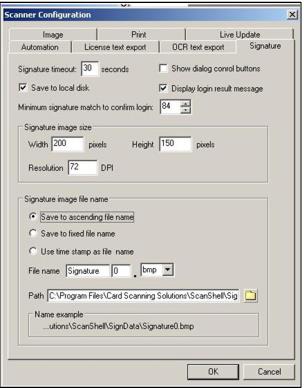
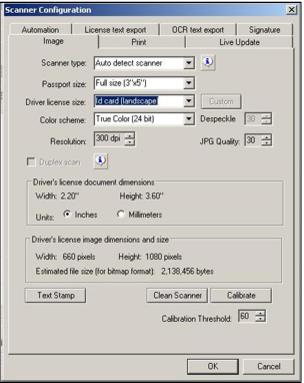
9. Configure the tabs as shown in the following screen captures.
10. Launch idScan again to ensure that the scanner shows a connection with the green light.