Printing/previewing confirmations
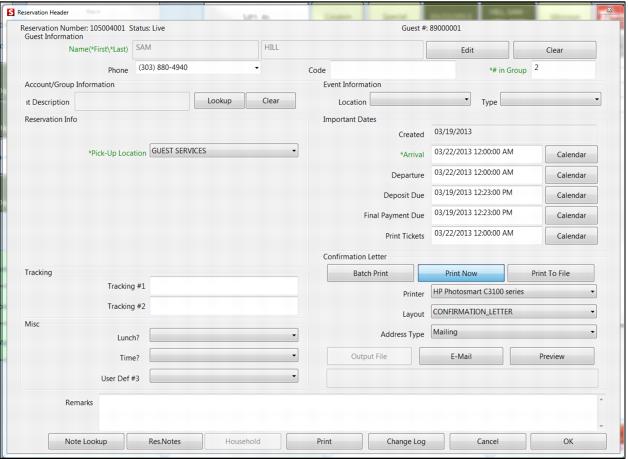
The Confirmation Letter section of Reservation Header dialog is in the lower right, as shown in the following screen capture.
To use confirmations, begin by selecting a print option:
• Batch Print – Sends confirmation to a queue that can then be printed in bulk using the ResPrint utility (see
ResPrint)
• Print Now – Use this option to preview, send to a printer or via e-mail
• Print To File – Use this to option to create a .pdf file
Note: All the buttons and fields in the Confirmation Letter section are selection options and do not execute printing. The Print button at the bottom of the confirmation page executes the print job based on the selections made in the Confirmation Letter section.
To use the Print Now option for confirmation letters:
• Use this option to preview, print or e-mail a confirmation
• Must define a Printer and select a Layout and Address Type
• Preview button can be selected for any Print Now option, allowing the confirmation to be previewed before printing or e-mailing.
• Use Print button to execute print job
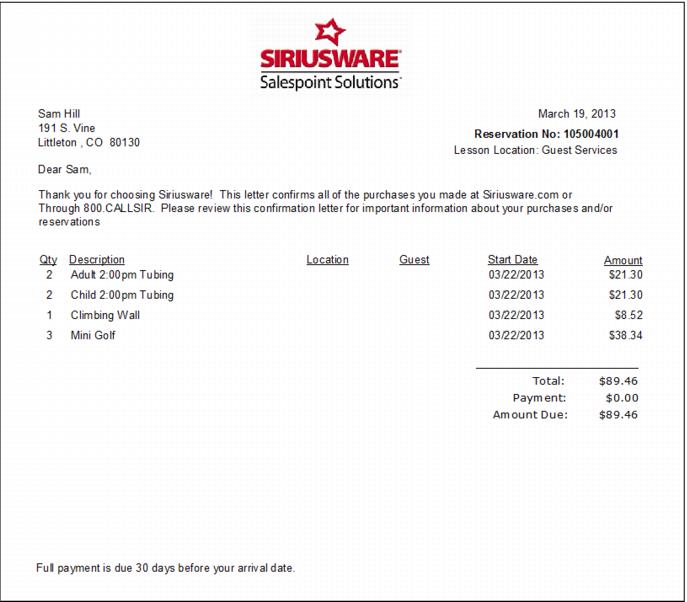
The following screen capture shows a sample confirmation letter preview.
To use the Print To File option for confirmation letters:
• Use this option to create .PDF files
• Must define an Output File and select a Layout
• Use Print button to execute print job