Booking a single show ticket
1. Start by clicking the Reserved Seating main action button in Sales or the Reserved Seating item tree node in the E-Commerce module.
2. You can quickly scan details for a show by hovering the cursor over a particular show.
3. Select the Show from the calendar using the Next Month/Next Year and Previous Month/Previous Year buttons as necessary.
Note: The Production and Venue dropdowns can be used to filter shows on the currently selected month.
4. After selecting a Show on the calendar, click the Buy Tickets button.
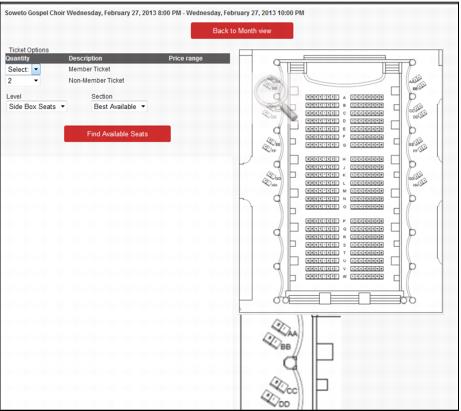
5. Enter the desired Quantities and Ticket Types, plus any Level or Section requirements (specifying a Level and/or Section is optional) and click Find Available Seats.
Note: If a selected Ticket Type requires validation, the member (pass) number can be entered in the corresponding Validate box during the seat selection process. The number entered carries over into Sales or the E-Commerce cart for validation.
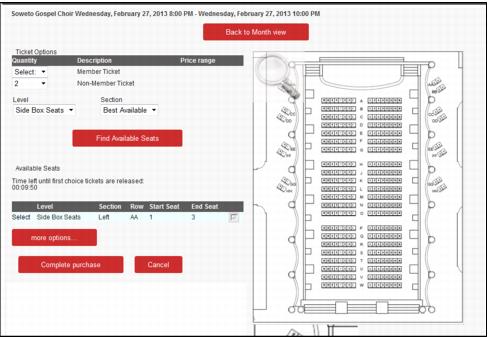
6. The system returns “the best available” seat block, but to see additional blocks click the More Options… button. If no seats are available, users receive a message detailing the lack of tickets.
Note: The magnifying tool can be used to get a better view of the seat map.
Note: The seat selection and ticket purchase process must be completed before the timers count down to zero or the seats are released! Sales presents a timer showing the operator how much time is remaining until a hold expires on a Reserved Seating item. One minute before the hold expires, a warning message is displayed which alerts the operator that the hold is about to expire and the sale must be saved or finalized. If the sale isn’t saved or finalized before a hold expires, the Reserved Seating items are removed from the sale.
7. Select a seat block and press the Complete Purchase button.
8. In Sales, collect any other required data and Save or Finalize. In E-Commerce module, continue the checkout process.
Important: Reserved Seating items are prevented from being used as modifiers in regular and web sales, whether being added manually or through the MODIFYITEM macro.