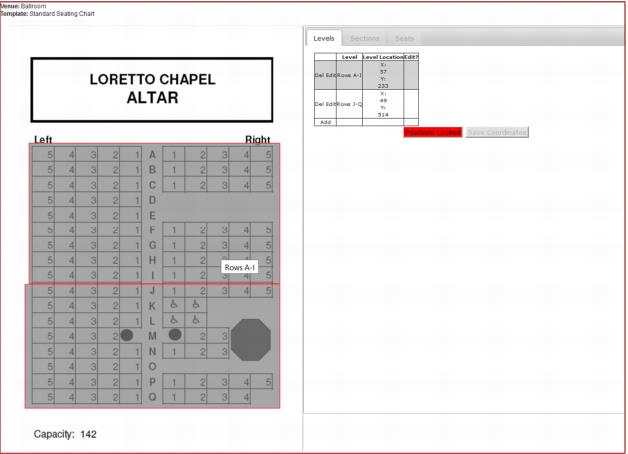
Levels and Sections
Add new
To map a Level or Section:
1. Click on the Add link by the grid and a new blank row is added.
2. Select a Level/Section to map from the dropdown box.
Note: Only Levels/Sections already defined in SysManager can be mapped.
3. Select a shape from the dropdown box (Rectangle, Circle, Ellipse or Polygon) and click the green Draw button to enable drawing.
4. Move the cursor to the seat map and draw the desired shape on top of the seat map image.
5. To erase the shape, click Clear, and then draw again.
6. When you have finished drawing your selected shape, click on the red Draw button again to disable drawing.
Notes on Drawing:
• Rectangles, ellipses and circles are drawn by clicking once and dragging while still holding the mouse button down.
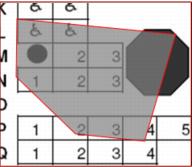
• Polygons are drawn by clicking and releasing the mouse button in different points and they are connected by lines automatically.
• To finish or close the polygon, click on the red Draw button.
Click Save to store the new mapping or Cancel if changes are not complete.