Edit existing
To edit an existing Level or Section mapping:
1. Click on the Edit link next to the desired Level or Section.
2. Click the Clear button to erase its corresponding shape from the seat map.
3. Select a new shape from the dropdown box and click on the green Draw button to enable drawing.
4. Draw the desired shape on the seat map and when finished, click on the red Draw button to disable drawing.
5. Click Save to store the mapping.
Delete
To delete an existing Level or Section mapping:
1. Click on the Delete link next to the desired Level or Section.
2. Confirm deletion on the alert dialog box.
Note: Levels/Sections that have subordinate (children) mappings cannot be deleted. The user must remove all subordinate elements first, and then remove the primary (parent) Level/Section.
Reposition mappings
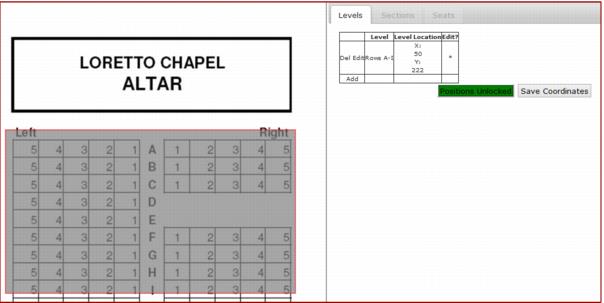
It is now possible to move or reposition the Level/Section mappings within a seat map without the need to individually edit each one.
1. Click on the red Positions Locked button located below the Level/Sections grid, so that it becomes green. This “unlocks” the mappings so they can be moved.
2. Click and drag the mappings to be moved and reposition them as desired. Notice how the X and Y coordinates in the Level Locations column of the grid change as the mapping is moved. A * in the Edit? column of this grid indicates that mappings were repositioned.
3. When repositioning is complete, click on the Save Coordinates button to store the current mapping locations. Saving also “locks” the mappings in place and the Positions Locked button returns to red again.
4. Clicking on the Positions Unlocked button without Saving, only locks the mappings positions again but does not store their new locations.
Navigating / zooming seat maps
To navigate or zoom in and out from/to Levels, Sections and Seats, the user can simply click on the mapping. This zooms in the seat map image and displays the grid corresponding to the inner components.
• ZOOM IN by clicking on a Level to zoom into that level’s area and display its mapped sections. Clicking on a section, zooms in to that section area and display its mapped seats.
• ZOOM OUT by clicking on the desired tab above the grid.
Note: Tabs are only enabled to zoom out and not zoom in, as the system needs to know the Level or Section selected to be able to zoom in.