Availability Rules
Availability Rules can be defined so that a given area (Level or Section) has a color background to visually indicate the seat availability for a given show. These rules are set at a Production level and applies to all shows for that production.
When the Seat Availability % (percentage of open seats) falls within the specified range of a rule for a given Level or Section, the background color of this area changes to the color specified in the rule. If there is no applicable rule for that area, the background color stays gray by default.
1. To add a new rule, click on the Add link at the bottom of the appropriate grid (Section or Level grids).
2. Select a Level/Section for which this rule applies to from the dropdown box.
3. Add a Description.
4. Enter in Lower and Upper % limits (numbers only).
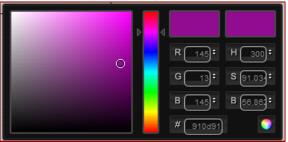
5. Enter in the Color code or name (FFFFF or white) or select a color from the Color Picker dialog that displays when the cursor is in the Color text box. To select a color from the Color Picker, drag the sliding color ruler up and down to the color family, and then drag the circle to select the desired color shade. Then, click on the sphere button on the bottom right corner to paste the selected color code into our text box.
6. Click Save to store all this data.
7. Follow the same process to Edit an existing rule.
8. Click on Delete to remove an existing rule.
Note: There could be multiple Availability Rules to a single Level or Section.