Sales and SysManager
A Notes button must be present on line items to perform a special order. To add a Notes button to the line item buttons, add the following setting to the Sales32c.INI.
[Interface]
LineItemButtons=Modify,Special,DateTime,Account,Message,Other,Notes
To link a special order to a guest, add the following Sales .INI setting:
[Preferences]
LineItemNotesLinkedToGuest=TRUE
For the following example, a SPECIAL ORDER item was created that is a direct pricing item and requires guest information be entered. This allows for any amount of a deposit to be placed on the special order. Alternatively, one could use the GuestAnywhere=TRUE .INI setting and use the item actually being special ordered. In both cases the sale is initially saved. The sale is finalized once the special order item is received and the customer picks it up.
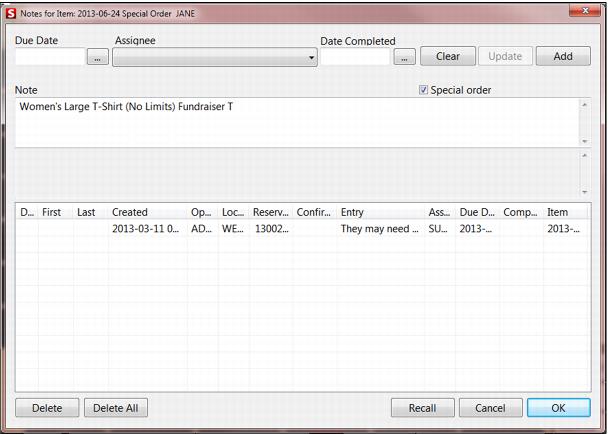
To start, sell the SPECIAL ORDER item and set the deposit amount. Enter the guest info and save the guest, and then go to the Notes button. On the Notes dialog, check the Special Order check box (must be checked to process with a PO), enter a note in the Note field, and then hit the Add button.
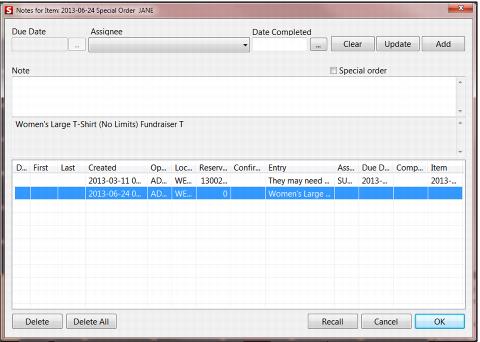
After hitting Add, the dialog appears as follows:
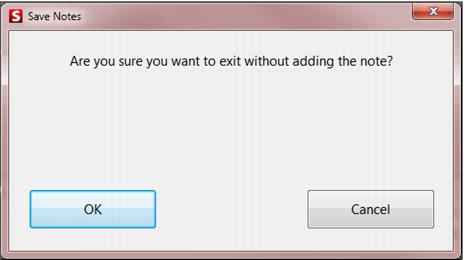
If an operator enters a note in the Note field but forgets to add the note with the Add button a warning message comes up if the operator tries to exit the Notes dialog.
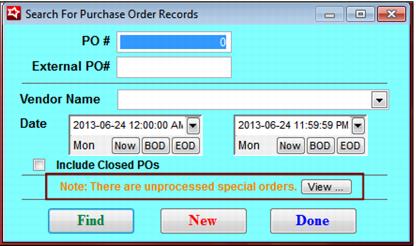
Once the above is accomplished the order is in the hands of the retail manager. When the retail manager goes to Activities > Inventory Activities > Purchase Orders in SysManager if there are unprocessed special orders the Search for Purchase Order Records dialog states that there are unprocessed special orders.
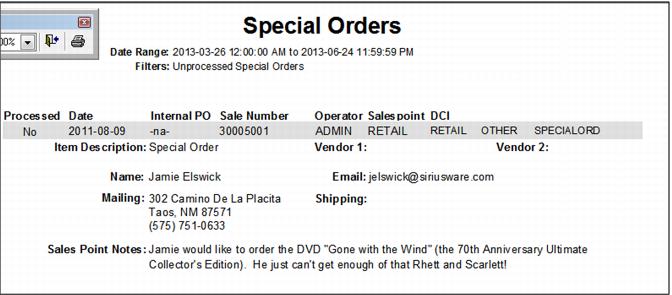
Choosing the View… button at the end of the “unprocessed” message, brings up the Special Order Report.
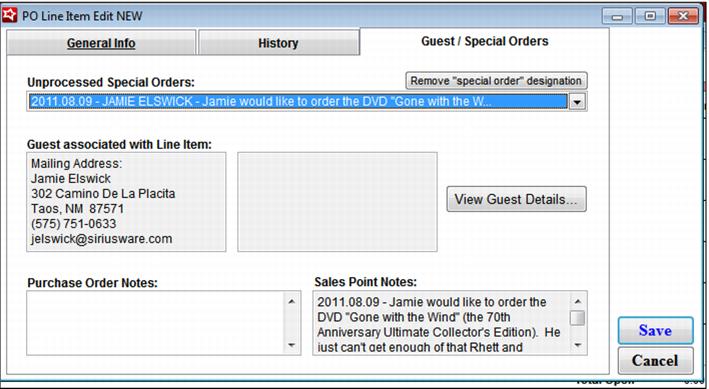
To process the special order the manager would create a new PO, enter the special order item in the Line Items tab, and then proceed to the Guest/Special Orders tab. From the Unprocessed Special Orders dropdown, the special order involved is then chosen. The PO is now linked to the guest’s special order.
Saving the PO and exiting the Search for Purchase Order Records dialog then marks this special order as processed. When the item is received in the PO besides the Inventory Receiver form that normally comes up an additional Special Order form is also created and can be printed.
Notice that the note entered in Sales appears in the Sales Point Notes field. Also, through View Guest Details the guest record can be edited if the address is incorrect etc.
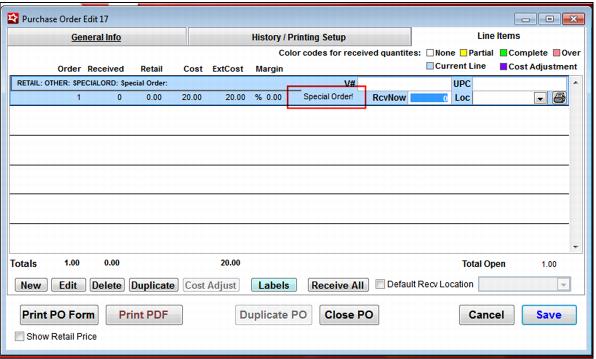
If the PO is a special order, Special Order! appears in the line item of the Line Item tab.
If the order is cancelled before the PO is closed the guest can be removed from the Guest/Special Order tab with the Remove Guest Link button, the PO saved again. Immediately, going back into the PO, choosing the Guest note in Unprocessed Special Orders dropdown and choosing the Remove Special Order Designation button. The PO can then be closed without receiving the item and the special order no longer appears in the Unprocessed Special Orders dropdown.