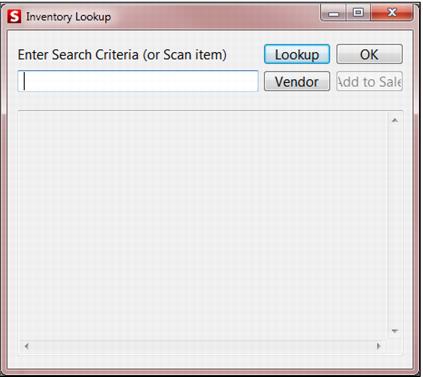
Inventory dialog
The Inventory Lookup dialog, displayed when you click the Inv. Lookup action button, is shown in the following screen capture:
From this dialog, you search fields associated with the item. The order in which the fields are searched is determined by the TrackingLookupOrder and MatrixLookupOrder .INI settings. You can also search by Vendor. The primary fields that are searched are specified on the SysManager > DCIs > New/Edit item > Inventory tab. When the item appears, click Add to Sale to add the item to the invoice on the main Sales screen.
Retail items do not need to be displayed at the salespoint for lookup. You can also use a standard retail scanner from the Inventory Lookup dialog to scan a barcode or UPC label on the item itself. In order to look up inventory by scanning in Sales, the retail scanner needs to be pre-programmed with %R.