Verifying mixed mode authentication is enabled
Mixed mode authentication must be enabled. If only Windows authentication mode is enabled, and then the middleware is not able to access the Siriusware\Data directory, where the database files reside.
To verify mixed mode authentication for SQL Server 2008/2012:
1. Launch the SQL Server Management Studio application on the SQL server. This is usually done from Start > All Programs > Microsoft SQL Server 2008/2012 > SQL Server Management Studio.
2. From the Connect to Server dialog, log in using either Windows Authentication or SQL Server Authentication.
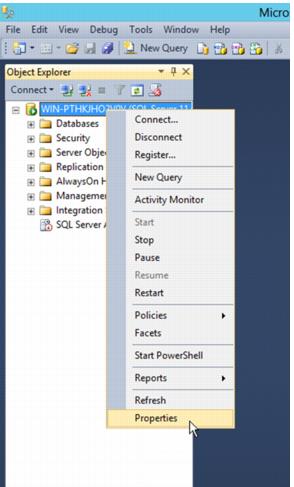
3. From Object Explorer, right-click on the top level (root) of the navigation tree and select Properties. (See screen capture below.)
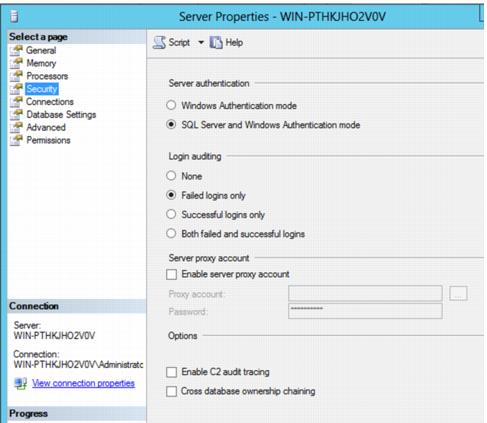
4. From the Server Properties dialog, select Security. (See screen capture below.) Verify the radio icon in front of SQL Server and Windows Authentication mode is selected, and then exit the SQL Server Management Studio application.
If Windows Authentication mode was selected, you need to change it, save the settings and either restart SQL services or you can simply reboot the server computer for the changes to take effect.