Mapping to the Siriusware folder from other computers
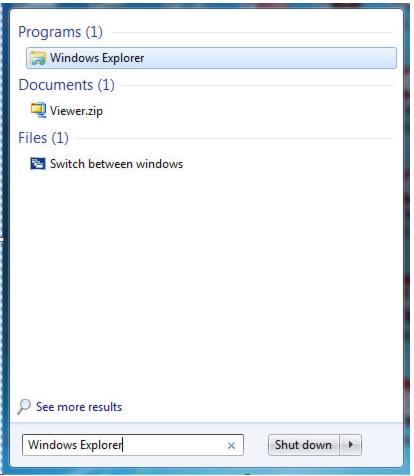
When any Salesware application launches, it first checks the Siriusware\Updates folder to determine whether there is an update available. This functionality is provided by the Runexe application, which is installed on every computer that hosts Salesware applications (you use the Common Files installer to install it.) If you attempt to directly double-click on a Salesware .exe file, you get an error message similar to the following, “This Application Cannot Execute Without Its Loader”. Instead, you must use the shortcut to the application, which invokes Runexe.exe (the “loader”) first. If Runexe cannot find the Siriusware\Updates folder on the network, you get an error message similar to the following, “Path: ‘\\MyServer\Siriusware\Updates\’ does not exist.” One way to avoid getting this message is to ensure that the computer connects to the server computer when you log in. To configure your computer for this in Windows Server 2008, go to Start and type in Windows Explorer, as shown in the following screen capture:
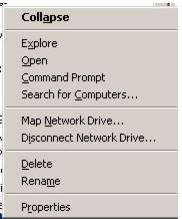
Select Windows Explorer or press Enter to open the File Explorer. From My Network Places, find the Siriusware folder on your server. Right-click on it and you are given an option to map this folder to a drive (Map Network Drive), as shown in the following screen capture:
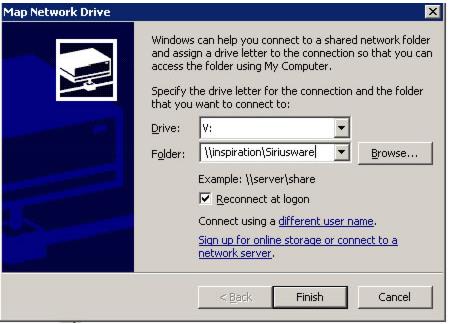
From the Map Network Drive dialog, check Reconnect at logon, as shown in the following screen capture. (You can select any unused drive letter.)
In Windows Server 2012, open the File Explorer by selecting it in the taskbar at the bottom of the screen, as shown in the following screen capture:
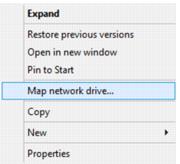
Expand the Network node on the left and locate the Siriusware folder on your server. Right-click on it and you are given an option to map this folder to a drive (Map network drive…), as shown in the following screen capture:
From the Map Network Drive dialog, check Reconnect at sign-in, as shown in the following screen capture. (You can select any unused drive letter.)
Note: There are other methods of connecting to a network drive, including via use of the Command Prompt. However, the method described here is easy and always works.