Installing Common Files application
You must run the Install_Siriusware_CommonFiles_xxxx.msi installer previous to installing the remaining Salesware core installers: before Install_Siriusware_PoolService_xxxx.msi, Install_Siriusware_SysManager_xxxx.msi, Install_Siriusware ReportManager_xxxx.msi and Install_Siriusware_Sales_xxxx.msi. If more than one of these installers is run on a single computer, you need only run the Common Files installer once. You need administrator privileges on the computer where Common Files application is being installed. Before running this installer, you must have already installed SQL Server and the Server Files installer.
Note: You can determine which version of Common Files application is installed by checking the registry key HKEY_LOCAL_MACHINE > SOFTWARE > Siriusware > Installation > CommonFilesVersion.
The Common Files installer:
• Creates the Siriusware directory structure. (If installing Common Files application on the same computer where Server Files application was installed, then you would normally specify that this directory structure is the same as that already created by Server Files application, but this is not a requirement.)
• Installs the runexe.exe application
• Installs files used by a variety of Salesware applications, such as fonts and FoxPro libraries.
• Writes shared information to the Windows registry, such as the location of the Siriusware folder on the network
To run the Common Files installer:
1. On the computer where you are installing Common Files (and where you are about to install Pool Service, SysManager, ReportManager or Sales), access the \Siriusware\Installs directory.
2. If you are installing Common Files application on the server computer where Server Files application is already installed, you can run the Install_Siriusware_CommonFiles_xxxx.msi installer directly from the \Siriusware\Install directory. If you are accessing the \Siriusware\Install directory over the network, you can either run the installer over the network or copy the installer to the desktop and run it from there. Siriusware Inc. recommends that you run the installer over the network. If you later modify the installation, Windows looks for the installer in the location from which it was originally run. It might inadvertently get deleted from the desktop.
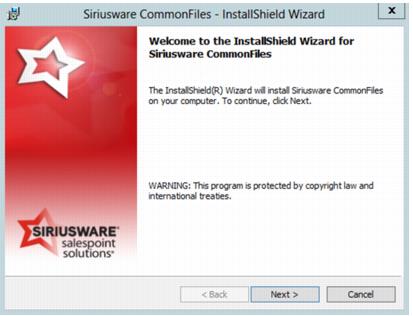
3. You are presented with the following dialog. Click Next.
4. You are presented with the License Agreement. Read the agreement and click I accept the license agreement to continue.
5. You are presented with the following dialog. Accept the default installation directory (C:\Program Files (x86)\Siriusware) unless you have good reasons to place it elsewhere. Click Next. Installation of Common Files application begins.
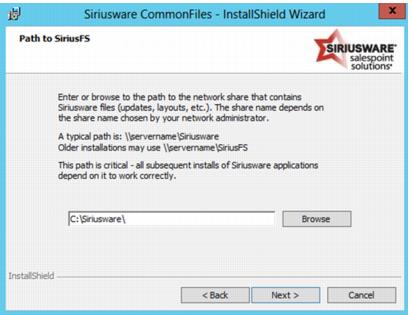
6. During installation of Common Files application, you are presented with the following dialog. If you are installing Common Files application on your SQL Server computer, you may browse the local file system by clicking the Browse button and navigating to the shared Siriusware directory on your local system. Otherwise, enter the path to the shared Siriusware directory on your network according to UNC conventions (i.e., \\servername\share).There is no need to map the Siriusware share to a local drive prior to running Common Files application. Click Next and the Common Files installation continues.
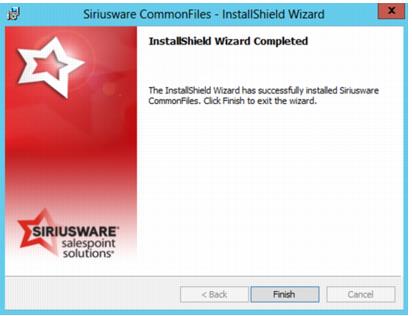
7. When Common Files application is done installing, you are presented with the following dialog. Click Finish.