Installing a training database
You may wish to use a training database. Training databases are useful for testing as well as training. The training database is simply a copy of the actual live database, attached as another name.
The training database should not be created until after the “live” system has been fully installed and verified working. Also, when creating the training database you are bringing down the entire live system for a few moments and need to verify that everyone is out of the system.
To install the training database on SQL Server 2008/2012:
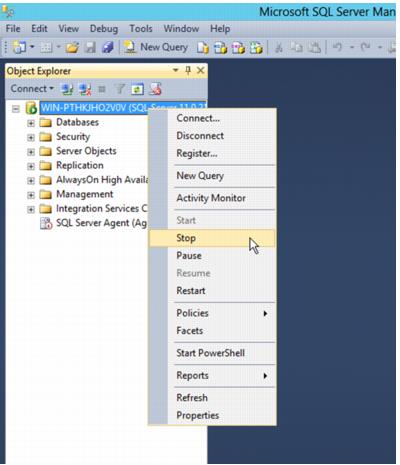
1. First, make of copy of your “live” database. But before you can duplicate it, SQL Services must be stopped. To do this, open Microsoft SQL Server Management Studio and log in. Right-click on the SQL server name and select Stop.
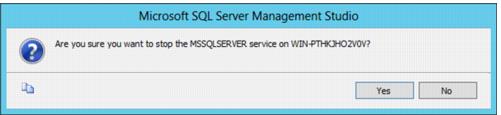
2. You are prompted to confirm the stop of SQL services on the server. Click Yes to continue.
3. Minimize the Microsoft SQL Server Management Studio screen.
4. You now need to copy the four files that comprise the SiriusSQL database:
SiriusSQL.mdf
SiriusSQL.ldf
SiriusSQL_LOGS.ndf
SiriuSQLTRANSACT.ndf
These are usually found in C:\Siriusware\Data.
5. Create a new folder in the Siriusware directory called Training Data and copy the four database files into this folder. (You now have the database files in two locations.)
Note: The training database must reside in a separate folder from the live database. Also, there is no need to separate the log file from the primary files.
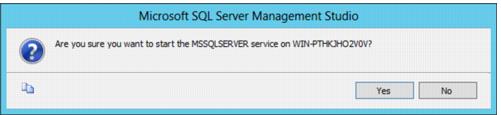
6. Open the Microsoft SQL Server Management Studio application and right-click on the SQL server stopped previously. Select the Start option. You are prompted to confirm that you do in fact want to re-start the server.
It may take a few seconds for the services to start back up. At this point the system can once again be used in live mode.
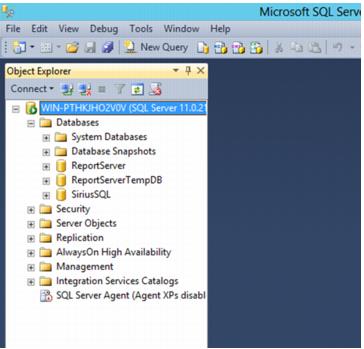
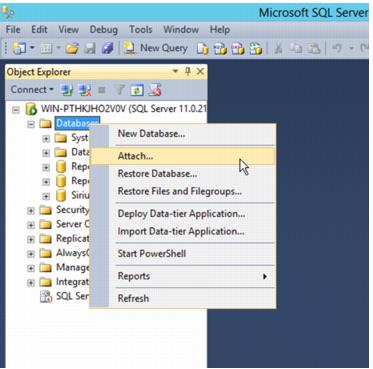
7. The next step is to attach the training database. With the Microsoft SQL Server Management Studio application still running, expand Databases on the left side of the screen.
8. Right-click on Databases and select Attach….
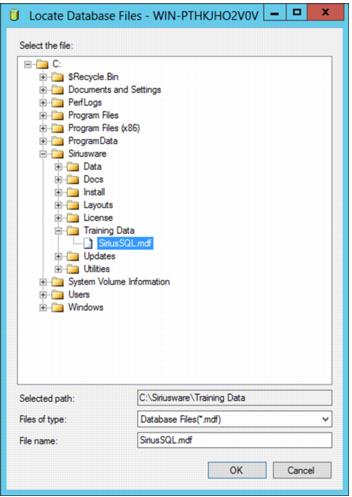
9. The Attach Databases dialog opens and prompts you for the location of the database files. Click Add to browse to the location of the duplicated database files that reside in your newly created Training Data folder and select the SiriusSQL.MDF file. Click OK.
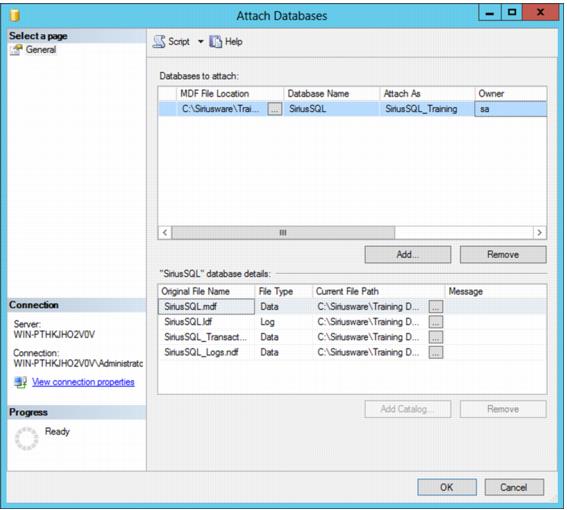
10. You see the following dialog, indicating the location of the files that are ready to attach. Ensure that the name to attach the database is SiriusSQL_Training (in the Attach As field) and the owner of the newly attached database is still SA. You can modify either of these fields by double-clicking on the field and editing it. Click OK to attach the database.
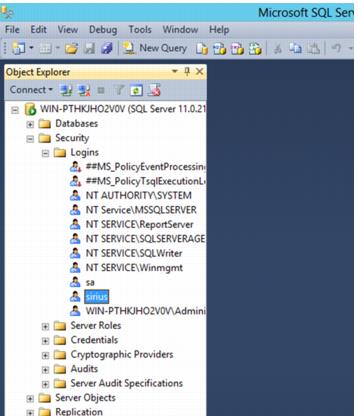
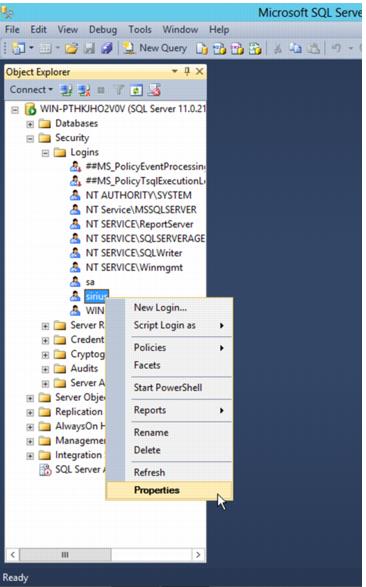
11. The last step is to give the user sirius access to the newly installed database. In Microsoft SQL Server Management Studio, expand Security on the left side of the screen and then expand Logins. You see the user sirius listed.
12. Right-click on the user sirius and select Properties.
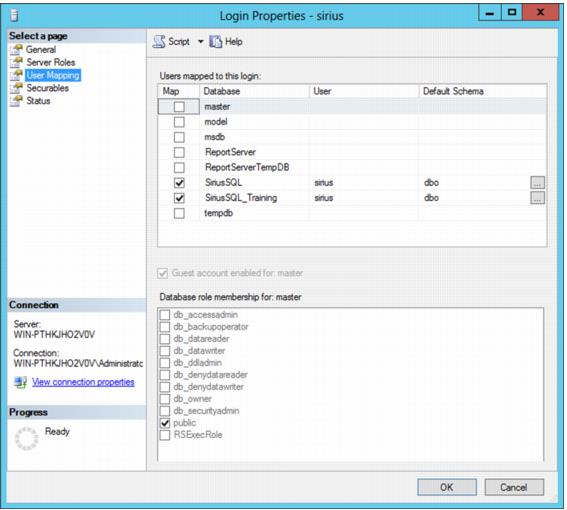
13. Click User Mapping and ensure that there is a checkmark in the Map column next to SiriusSQL_Training. (You now have checkmarks for both Siriusware databases, allowing this one user access to both databases.) Click OK.
The training database is now in place and ready for use by the training versions of the 4.3 suite of applications.