Data sources
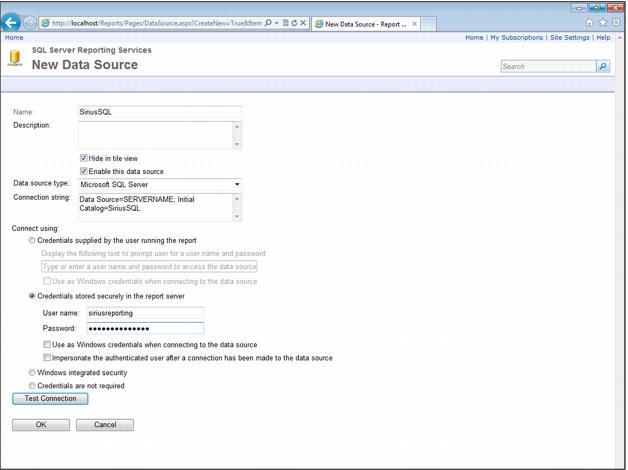
Most (if not all) Siriusware custom reports utilize a Shared Data Source, which is created and maintained separately from the individual reports. This means that any change in password or server name only needs to be made in one place, as opposed to every individual report. In concept it is very similar to the familiar ODBC connection used by Salesware module. If, when viewing the Home page in the Details View, you do not see a Data Source named, “SiriusSQL,” you need to create it before uploading any of the newer Salesware reports:
1. Click on New Data Source in the menu ribbon of the Home page.
2. In the Name text box, enter SiriusSQL.
3. Make sure Hide in tile view is checked.
4. Make sure Enable this data source is checked.
5. Connection type is Microsoft SQL Server.
6. Connection string reads: Data Source=SERVERNAME; Initial Catalog=SiriusSQL.
7. The Connect using section deals with the authentication used to access the data in the SiriusSQL database. Generally, Siriusware Inc. recommends that clients or, more specifically, the server administrator, create a (secret) SQL log-in specifically for ad-hoc reporting that is granted the db_datareader role in the SiriusSQL database. Select Credentials stored securely on the report server and enter the appropriate username and password.
Note: This is a per user setting, so it will need to be performed for each user that logs on to the computer.
8. Click Test Connection to verify that the connection is successful.
9. Click OK to save.