Uploading new reports
It is important to understand that, though an XML-like Report Definition Language (RDL) file is written when you create a report in Visual Studio, when you upload an RDL file into Reporting Services it becomes a part of the ReportServer SQL database. In other words, there is no physical file related specifically to the report on the server once uploaded.
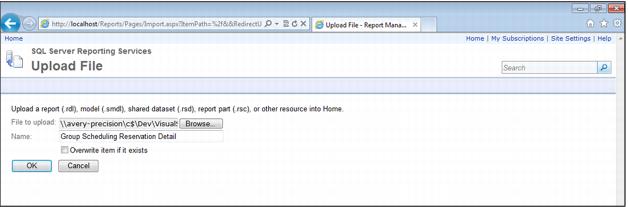
To upload a new report:
1. Click on Upload File in the menu ribbon of the Home page.
2. Browse to find the RDL file for the report you want to upload and click OK.
3. Enter the desired report name in the Name text box.
Note: The Resource Scheduling, Reservation Detail Report must be named, “Resource Scheduling Reservation Detail Report”. The other Resource Scheduling reports link to it by name.
4. If there is another version of the report already on the server, check the Overwrite item if it exists check box.
5. Click OK.