SQL server
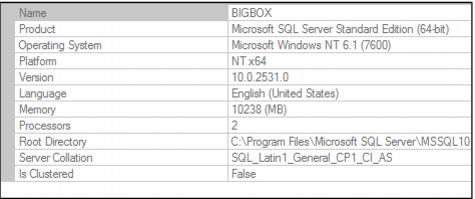
Unfortunately this setting is determined when SQL Server is installed and cannot be changed. However, it is important to know how it is set so that you can understand how Reporting Services behaves. To check the setting from SQL Management Studio’s Object Explorer, right-click the server name (BIGBOX in the example below) and select Properties. You see the Language setting on the sixth line on the General tab:
If you see English (United States) and you would prefer something else (U.K., Australia or New Zealand for example), then a slight alteration needs to be made to the report RDL file before uploading.
To update a report’s default language:
1. Open up the RDL file in Notepad (or some other text editor). Notice that this is basically an XML file, with tags and values much like a .config file in Salesware module. Just after the </Body> tag, insert the line appropriate for your location:
• New Zealand : <Language>en-NZ</Language>
• Australia : <Language>en-AU</Language>
• United Kingdom : <Language>en-UK</Language>
2. Save the file, and then upload per the above instructions and all is well.