Helper
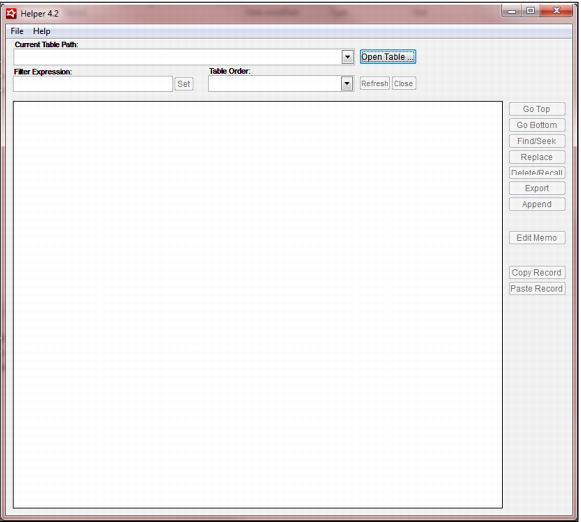
Helper is a utility used to view/modify Visual FoxPro files. It is used for local files (salespoint local data or a FileSync database). You cannot look at SQL Server data with Helper 4.3. The Helper interface is shown in the following screen capture:
With Helper 4.3 you can:
• Run FoxPro commands by opening a command window and typing in commands
• Open FoxPro tables (.dbf files)
• Open local Sales tables and edit – the dropdown shows the most recently opened tables
• Open FileSync tables and edit
• Execute SQL statements like SELECT statements on local data
• Edit and run a .prg program
• Edit a .txt file
• View a log file
Warning: Always back up data files before modifying them with Helper utility.
Note: Sometimes a field in Helper utility reads Memo or memo. If it reads Memo with a capital M, this means that you can see what actually prints from that field if you click the Edit Memo button.
Helper utility is especially useful for checking the forwarding status (fwd_status) of records and changing if necessary.
The following tables show the codes that are used to indicate the forwarding status of a record. The first table lists and describes the codes used in the local ww_sales table. The second table lists and describes the codes used in the server ww_sales table (you can’t view these codes, however, with Helper, because the table is on the server). The third table lists and describes codes used in the local ww_email table. More detailed information about the table data used by E-Commerce module can be found in Detailed description of E-Commerce communications between ww.dll and Sales Host. The fourth table lists and describes the codes used in all other tables.
Code in local ww_sales table | Description |
0 | Needs to be processed |
1 | Done locally, but need to send to the server |
2 | Done locally and sent up to the server |
4 | Error encountered locally, but need to notify the server |
5 | Error encountered locally, the server has been notified − or could mean an error occurred in forwarding the record |
8 | Retired, need to notify the server |
9 | Retired, server has been notified - The server notification needs to happen so that one can just look at the server ww_sales to see what’s been happening all over the site |
15 | The FWD_Status is changed to 15 when changing WSH to Classic Sales. |
Code in server ww_sales table | Description |
0 | Needs to be picked up by a salespoint |
1 | Assigned to another salespoint |
2 | Completed |
5 | Error |
9 | Retired |
Code in ww_email table | Description |
0 | Unprocessed |
2 | E-mail has been sent |
5 | Error – either, “ww_tix records did not exist on server so e-mail could not be sent” or some other unknown error |
Codes used in all tables other than ww_**** | Description |
0 | Record not yet forwarded - Forwards using AppendRecs in SalesEZ |
1 | Record not yet forwarded - Forwards using ModifyRecs in SalesEZ |
2 | Record was successfully forwarded |
7 | SQL error |
8 | Retired manually or with LocalDataBoss |
9 | Duplicate primary key error |
Currently, you must manually install Helper utility. Download the c_helper_*.exe update file from the Siriusware Inc. ® web site and put it in your Siriusware\Updates folder. Then modify your RunExe.INI file, create a Helper folder and create a desktop shortcut:
To modify RunExe.INI:
1. On the computer where you plan to run Helper utility you need to modify the RunExe.INI file manually. Open RunExe.INI (usually located in C:Program Files\Siriusware) using NotePad or another text editor.
2. Add the following lines to the bottom of the RunExe.INI file:
[Helper]
EXEName=Helper.EXE
LocalPath=C:\Program Files\Siriusware\Helper\
UpdatePath=\\fileserver\Siriusware\Updates\
CompressEXE=C_Helper_*.EXE
IgnoreNetErrors=NO
IgnoreLocalErrors=NO
3. Edit the LocalPath and the UpdatePath as appropriate for your environment.
4. Save your changes.
To create a Helper folder and desktop shortcut:
1. Create a Helper folder in your local Program Files\Siriusware folder.
2. Create a desktop shortcut for launching the Helper application:
a. Make a copy of an existing Siriusware application shortcut and paste it to the desktop.
b. Rename the desktop shortcut Helper.
c. Right-click on the shortcut and select Properties.
d. Edit the Target: to read: “C:\Program Files\Siriusware\RunExe.exe” Helper. (If needed, modify the pathname as appropriate for the local Sales installation.)
e. Click Apply, and then OK to close the Properties window.
3. Double-click the Helper icon and Helper launches.