How to attach vouchers or coupons to a membership
The approach to using vouchers or coupons attached to a membership is to use pass items as modifiers to the parent pass. The modifiers are themselves passes that inherit guest information from the parent record. The modifiers have limited use (usually one total use) and are limited to validate specific items. When validated, a use is taken off. The validation is to allow a discount to be applied.
Example:
An Adult Unlimited Pass comes with $2 off of a latte at the snack bar, $45 off of a private lesson and $10 off of a rental. We’ll focus on the Latte as the other discounts work the same way.
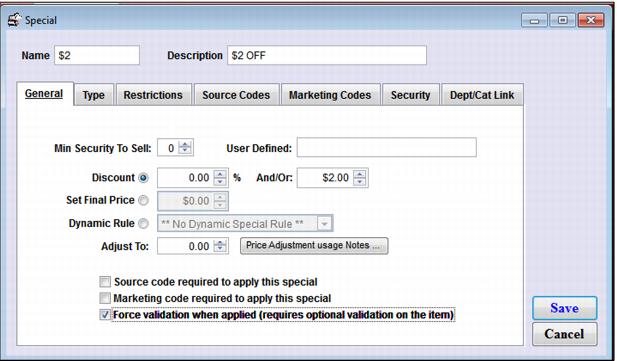
1. Create a discount of $2 off and make it Force validation when applied:
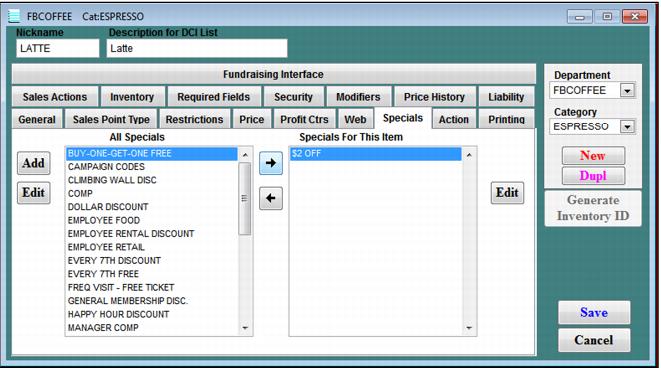
2. Add the special to an item, in this case a latte:
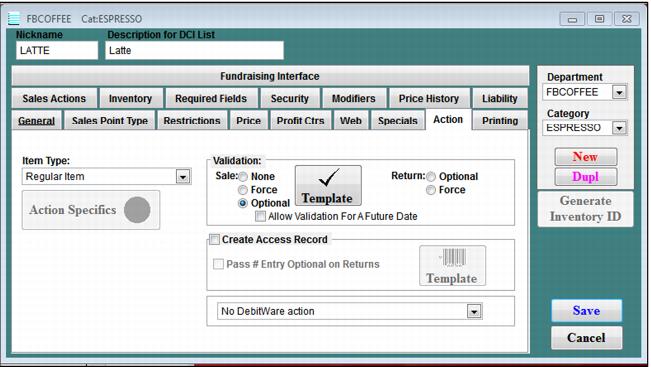
3. On the Action tab for the latte, set Validation as Optional:
4. In the Template have it take one use off of the item that validates the latte:
5. Now create the pass item that is the modifier of the parent pass and that is used to validate the discount. Call this a “voucher.”
6. On the Action tab for the item, make it Create a pass and in the Action Specifics, give it 1 use.
7. On the Item Discounts tab, put in a macro that adds the $2 special to the item being validated and assign to it the latte as the item:
8. Now go back to the Template for the latte item and go to the Item/Pass Relationships tab and you’ll see the link back to the voucher and the macro. Click the Restrict validation to only the following pass types to limit what can validate the item.
9. Go to the parent pass (in our case the Adult Ultimate Pass) and on the Modifiers tab add the voucher to the item and click the Inherit Guest Information from Main Item check box:
10. On the Sales Actions tab, add Sales screen action macros to automatically add all vouchers you want as modifiers to the pass:
11. Add the parent pass to an item tree and also the modifiers (you can hide them so they don’t show up) and test it out.
12. When you sell the item, the modifiers automatically attach and when you add guest info, that info propagates to the voucher items.
13. The parent pass must have a sixteen digit number. It can be an In-House Cards (Debitware) number if you like. It can print at the time of sale or you can attach it to the parent item during the sale if you have pre-printed cards. Because all card numbers automatically cascade when the pass is swiped against an item, the system looks for a pass owned by the guest that can validate the item. It only finds the vouchers because they should be the only items that can validate.
14. To test, sell a latte and click the Add Guest? button. Because the latte was set for optional validation, the dialog that comes up is the Validation dialog. On this dialog, swipe the pass. The system looks up the card number, find the guest, find all passes associated with the guest and try to find one that can validate a latte. Only the voucher can do this so it is used.
Note: The DCI being used is the BEVVOUCHER because no other vouchers can validate the item. Once you close the Validation dialog you see that the discount was automatically applied.
Once you finalize the sale, the voucher is validated and can’t be used again. It fails the next time you try:
You can look up the guest and see what passes and vouchers the guest has.
Note: that Amy’s Adult Snovember Pass is still active but the vouchers for that pass have expired. She also has a valid Ultimate pass with vouchers that are still active. You can drill down into a voucher to see if, when and where it was used:
Best of all you can always give a guest another voucher, say as consolation for some incident just by selling them a voucher as a parent item and attaching guest info:
The system warns you that the guest already has a voucher (pass) of this type but you can still add it and it is cascaded to when the person’s card is swiped as described above. You can see in Amy’s history the addition of this voucher as well:
A pass can therefore be issued with the following combination of attributes:
• Season pass that can be scanned at the lift
• In-House debit or gift card
• Attached coupons or vouchers
• Discount card (with the %E functionality)
In fact the only conflicting programs are In-House Charge and Resort Charge applications. They both can’t be used on the same card.
If a guest loses his card, all you have to do is look up the guest and attach a new card (removing the old number from the pass).
To do this, you would look up the guest and go to the Pass Inquiry tab. Locate the pass that has a Card# attached. In this case the Adult Ultimate Pass:
Double-click on the pass, click Modify and you can attach a new card by swiping a new card.