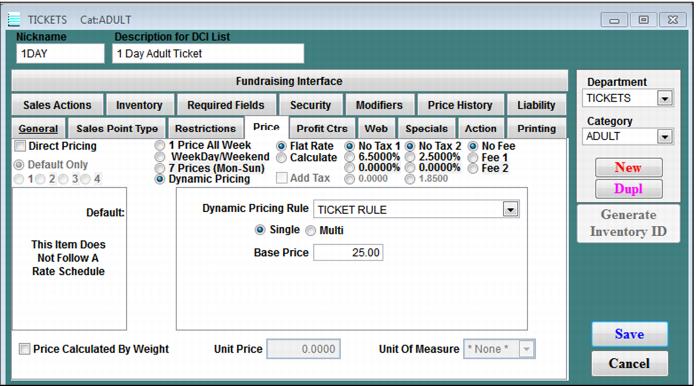
Setting | Description |
Direct Pricing | Check Direct Pricing to allow the item’s price to be entered at the time of sale by operators with sufficient security. Direct Pricing can be used to override the assigned price and therefore can be used in conjunction with other pricing features on this tab. |
Default Only | Check Default Only if you want this product to have only a single price, and not follow a rate schedule. |
1 2 3 4 (Rate Schedules) | To use rate schedules for a product’s pricing: 1. Verify that rate schedules are defined in SysManager > Preferences > Seasons & Dates (see How to define seasonal rate structures and taxes). 2. Choose a rate schedule (1 - 4). 3. Choose whether to assign a single price all week, a different price for weekdays and weekends, or different prices for each day of the week using the 1 Price All Week, WeekDay/Weekend and 7 Prices (Mon-Sun) fields. Note: The appearance of the box in the lower right of the tab varies depending on the choices you make in step #3. Enter the required information into each field that is displayed. |
Dynamic Pricing | See the Salesware Dynamic Pricing document. |
Flat Rate/Calculate | These selections are applicable to multi-day items. Prices for multi-day items (i.e., items that have been defined in the General tab as having an Admissions value greater than one) can be calculated in one of two ways: Flat Rate or Calculate. Choose Flat Rate for multi-day items if the price of the multi-day item is calculated based on the price assigned to the item for that particular day of purchase. The prices entered in the rate schedule would correspond to the price of the multi-day ticket. For example, if a customer purchases a four-day ticket on a particular date, and the price assigned to that date (utilizing the season schedule) and/or day of the week is $79, Sales would simply use the price entered. If the item is defined in the General tab to have an Admissions value greater than one and Calculate is chosen for the item, then the prices entered in the rate schedules would correspond to the price of that portion of the multi-day ticket, and Sales would calculate the price of the ticket based on the amounts entered for each of the days that the customer would be admitted. Note: Any item that has been defined in the General tab as having an Admissions value of one or zero automatically uses Flat Rate, whether or not it is selected. |
Add Tax | Before assigning taxes to items, you must customize this feature to define the specific taxes you use at your site. See How to define seasonal rate structures and taxes. An item defaults to having no taxes assigned to it. You have the option of adding one or two taxes to the sale of any item. The rates that you assigned to Tax 1 and Tax 2 during setup display. The third blank tax choice is for a custom tax that can be set per item. Select the rate that applies to the sale of this item, or use the bottom button to customize the tax for this item. Click the button and a field appears to the right allowing you to enter a custom tax rate. Once a tax is selected for the sale of this item, the Add Tax field becomes active. If Add Tax is selected, the tax is added to the price of the item when it is displayed for a sale. Do not check Add Tax if the tax is included in the base price. Note: If you have a package product that includes several items that are taxed differently, you may want to go to the Profit Ctr tab and define a profit center named Taxes and break the taxes out that way, as opposed to using this tax feature. Or you could use modifiers to “package” different items together that are each configured with their respective tax rates. Contact Siriusware Technical Support for more information. Note: The way the tax feature is currently set up in Salesware module, there is no way to deal with products that are taxable at their full price, but not taxable if a discount is applied. (In some states, tax is applied only if the product costs over a certain amount of money.) Note: The Salesware tax calculations are mainly for the guest. The site calculates taxes manually after the fact based on the true profit center splits. We charge taxes on a line item basis because of the many ways they can be calculated. You take your general ledger entries to calculate actual taxes, rather than using Salesware estimates. |
No Fee | Before assigning fees to products, you must customize this feature to define the fees you use at your site. See How to define fees. An item defaults to having no fee assigned to it. You have the option of adding one fee to the sale of any item. The rates or amounts that you assigned to Fee 1 and Fee 2 during setup do not display on the Price tab, but are the values used when calculating the sale of items with fees. If you would like to assign a fee, select either Fee 1 or Fee 2. Note: Fees are calculated (if the fee is a percentage fee) based on the full item price (before taxes are added), even if a 100% discount is applied to that item during a sale. Therefore, even if a sale is discounted 100%, fees are still charged. Note: Fees are always “backed out.” Therefore, if a product with a price of $100 has a $5 fee, the fee is always included in that $100. Discounting the product 100% still requires the fee to be paid. Use reports that break out fees to view the accumulated fee amounts. |
Price Calculated by Weight | Used with a scale to price items. Activates calculating price by weight. |
Unit Price | Used with a scale to price items. Price per unit specified in the Unit of Measure dropdown. |
Unit of Measure | Used with a scale to price items. Specifies unit of measure that corresponds to Unit Price. |