Printing tab
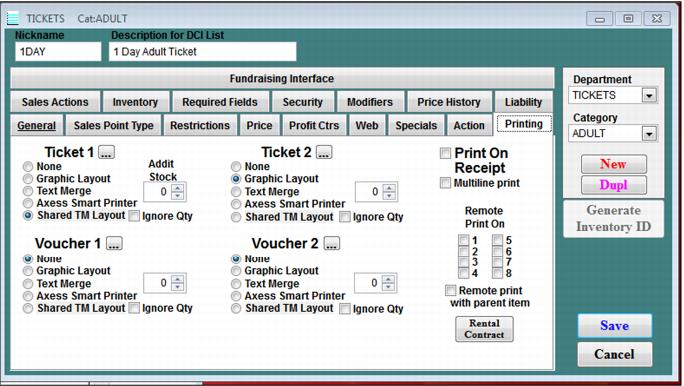
The Printing tab is used to link a Printer layout, or Multiple Printer layouts, to an item. The Printer dialog is shown in the following screen capture.
For example, a one-day adult ticket might print a ticket to the Ticket 1 printer, and a coupon to the Voucher 1 printer. When the item is sold in Sales, two pieces of stock are simultaneously printed.
By default, Salesware module does not print a receipt. To cause a receipt to print, you can check the Print On Receipt button for the item or you can set the salespoint to print a receipt for every sale (Sales > Tools > Sales Pt Setup > Miscellaneous > Print Receipt). You can also press the Reprint button in Sales to print a receipt on demand.
The Multiline print check box is used when you are printing vouchers/tickets for private or pod bookings and the item you are selling requires additional bookings. (For example, a quantity of 1 for the item could be configured to require a total of three bookings.) When trying to print a voucher/ticket per lesson with this type of item, checking the Multiline print check box allows the actual start date/time of the lesson based on the private or pod schedule to be printed, as opposed to the transaction start date.
When checked, the check box labeled Remote print with parent item causes the modifier to print on the same printer with its parent item. If the box is not checked, the modifier is printed on the printer assigned to the modifier itself (which may not be the same printer as its parent item).
For more information on this tab, see the Salesware Layouts document.
Some ideas on printing receipts:
• By default, the system does not print a receipt
• You can check the Print on Receipt button to cause the system to automatically print a receipt any time the item is included in a sale
• You can set the salespoint to print a receipt for every sale
• You can hit the Reprint button in Sales to print a receipt on demand