How to enter Guest Preferences (User-Defined fields)
To enter Guest Preferences:
1. Go to SysManager > Preferences > Guests.
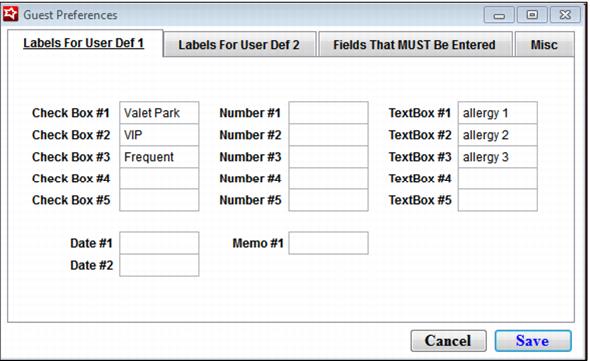
2. You can enter labels for the User Defined 1 tab here. You have five check boxes, five numeric fields, five text fields, two date fields, and one memo field available:
Note: If you need additional labels for guest preferences, more are available in the Labels for User Defined 2 tab.
The Guest Edit Form > User Def 2 tab in SysManager now includes support for five, new, long text (fifty characters) fields. Labels for these can be configured in the Guest Preferences Form > Labels for User Def 2 tab. Additionally, any of these five new fields can be configured as being required globally using the Fields That MUST Be Entered tab of the Guest Preferences Form and when selling an item using the Required Fields tab of the Item Edit Form.
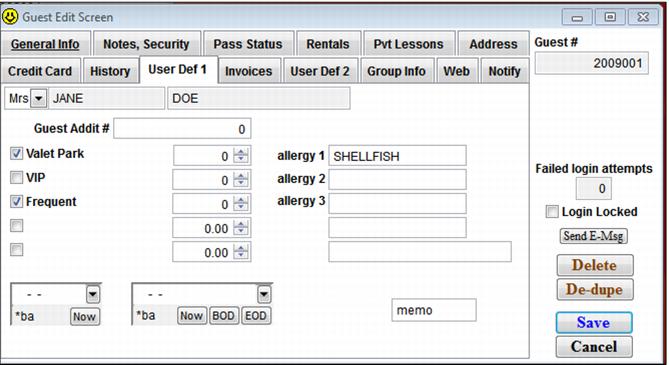
3. Any labels that are entered here show up in the guest’s User Defined tabs:
Five guest user defined text fields of fifty characters each have been added to the Guest Info 3 tab in Sales. Labels for these fields are configured in SysManager > Preferences > Guests > Labels for User Def 2 tab. Additionally, any of these five new fields can be configured as being required globally for guests using the Fields That Must Be Entered tab of the Guest Preferences Form in SysManager, when selling an item using the Required Fields tab of the Item edit Form, or via the RequiredGuestFields setting in the [Preferences] section of the Sales32c.INI file.