How to specify Points4Sale capability
Max4Sale and Points4Sale capabilities are very similar. Use Max4Sale capability unless you have to draw from inventory across departments. Max4Sale capability is tied to the DCI, whereas Point4Sale can grab from anywhere and is not tied to quantity.
Whereas Max4Sale records are linked to a specific DCI, Points4Sale records are linked to the Points4Sale group table. Points4Sale groups can then be linked to item records (limits at the category or department levels do not apply).
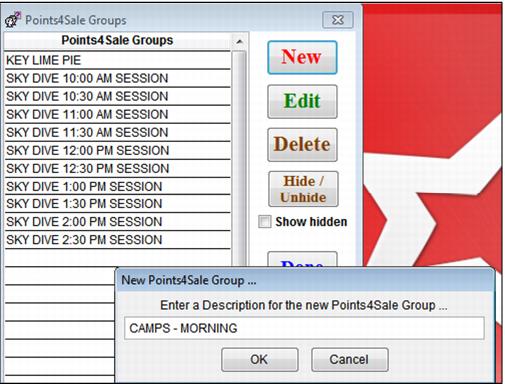
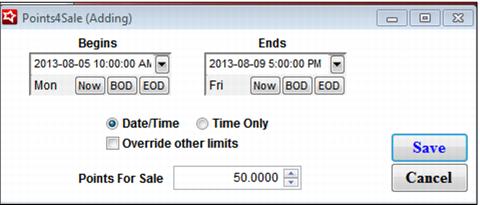
In SysManager, there is a Points4Sale Groups lookup dialog where you can create, edit, delete, or hide/unhide Points4Sale groups. This is accessed by going to Activities > Item/Sales Lists > Points4Sale Groups. When you create a new Points4Sale Group, you are first asked to enter a description for the group, and once the description is entered you are taken to a grid similar to the existing Max4Sale grid where you can create/duplicate/edit/delete individual limits and also edit the group description. When you create a new limit you can make it either a Date/Time Points4Sale limit where you enter a beginning and ending date/time and a Points4Sale limit, or a Time Only Points4Sale limit, where you enter a beginning and ending time and a Points4Sale limit. Dynamic time span limits are not an option here as they are with Max4Sale capability.
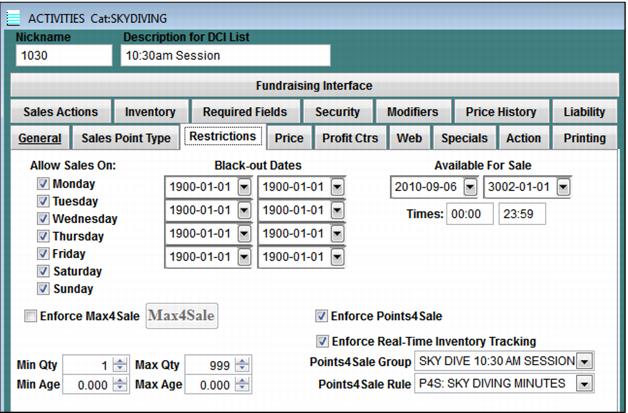
In the SysManager > Activities > DCIs > New/Edit > Restrictions tab, there is an Enforce Points4Sale check box. If this is checked, the new Points4Sale dropdown becomes active where you can specify the Points4Sale Group to use. In addition, the DP Rule dropdown becomes active where you can specify the Dynamic Pricing Rule to use for calculating the points to deduct from the limits.
Example:
A typical Dynamic Pricing Rule would be:
IF(DOW(MON-FRI),QTY()*2.25,QTY()*4.25)
An item can be configured to use either Max4Sale or Points4Sale restrictions, but not both. In addition, as with Max4Sale limits, when enforcing Points4Sale limits the user has the option of selecting the Enforce Real-Time Inventory Tracking check box on the SysManager > Activities > DCIs > New/Edit > Restrictions tab.
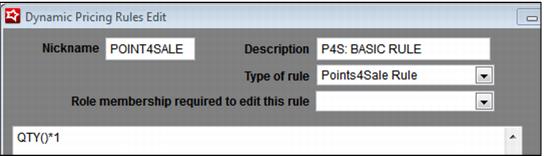
In the item description (recap) language, points can be referred to using <ifpoints> and <pts4sale> in a construction such as <ifpoints>pts=<pts4sale></ifpoints>. The Points4Sale Rule, which is used to determine the points cost of items sold, is a mathematical expression and can use the QTY()function. Also, any numeric field in the item record can be accessed using GETFIELD(fieldname), which can be included in a Points4Sale Rule. Note that points are not automatically scaled by the quantity of the item sold. So, in order to simulate that behavior, QTY*(rule) is necessary. Points4Sale Rules are configured as Dynamic Pricing Rules, and are assigned to items from the SysManager > Activities > DCIs > New/Edit > Restrictions tab.
Here are some examples of Points4Sale Rules:
Example Points4Sales Rule | Description |
IF(DOW(MON-FRI),QTY()*2.25,QTY()*4.25) | This rule says to multiply the quantity set on the main item by 2.25 if the day of the week is Monday, Tuesday, Wednesday, Thursday, or Friday, otherwise multiply the quantity set on the main item by 4.25. |
QTY()*(COUNTMODS(,,BEGINNER)*1.25 +
COUNTMODS(,,EXPERIENCE) *10.75) | This rule says to count the modifiers and multiply them by the specified amount. Then, multiply it all by the quantity set on the main item. |
IF(QTY(>=5),GETFIELD(ADMISSIONS)*1.25,
GETFIELD(ADMISSIONS)*2.5) | This rule says to multiply the number found in the items.admissions field for the item being sold by 1.25 if the line item quantity is greater than or equal to 5, otherwise multiply the number found in the items.admissions field by 2.5. |
Also, TIMESPAN (or TSPAN) is a function that accepts a single argument. It returns the time span set for the item in days (default). It can also be specified as follows:
TIMESPAN(SECONDS)
TIMESPAN(MINUTES)
TIMESPAN(HOURS)
Although TSPAN still works in the above (e.g., TSPAN(MINUTES)), the name was altered to avoid confusion with the TSPAN conditional expression.
Here are a couple of examples of how to use TSPAN.
Example of using TSPAN | Description |
IF(TSPAN(>=120),ROUNDUP(QTY()*1.75),
ROUNDUP(QTY()*3.25)) | This rule says multiply the quantity on the main item by 1.75, and then round up to the next whole number if the time span for the item is greater than or equal to 120, otherwise multiply the quantity on the main item by 3.25, and then round up to the next whole number. |
IF(TSPAN(>=120), TIMESPAN(MINUTES)*0.1, TIMESPAN(MINUTES)*0.15) | This rule says multiply the time span of the main item in minutes by 0.1 if the time span for the item is greater than or equal to 120; otherwise multiply the time span of the main item in minutes by 0.15. |
Example of using Points4Sale capability:
1. Configure your Points4Sale group (SysManager > Activities > Item/Sales Lists > Points4Sale Groups). Give it a name and insert the appropriate limits.
2. Configure a Dynamic Pricing Rule that specifies how much to decrement based on the sale contents/conditions. To mimic “classic” Max4Sale, where 1 is decremented from the Max4Sale limit per quantity sold based on the start date/time, enter this for the rule: QTY()*1.
3. Attach the appropriate Points4Sale group on the Restrictions tab of all items that decrement against the Max4Sale configured for the group. Check the Enforce Points4Sale check box to activate the dropdown. Check the Enforce Real-Time Inventory Tracking check box if necessary.
4. Finally, attach the Dynamic Pricing Rule that says how much to decrement on the Restrictions tab of the item that needs to follow that rule.
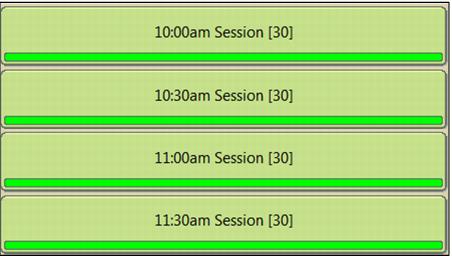
Note: You can activate the Max4Sale limit bar. It displays a green/red bar on the item button to provide another indication of how much of the given item is remaining for the selected global date/time. You activate it by inserting this setting within the [Interface] section of the .INI: ShowLimitBar=TRUE.
Note: You also must have the NewButtons=TRUE setting also set in the [Interface] section for the ShowLimitBar setting to function.