Step #2 – Configuring the voucher items
Set up your consignment voucher items. These items are typically $0 products that are issued to hotels/tour operators. In most circumstances, revenue is recorded when the vouchers are redeemed rather than issued, thus the reason for the $0 voucher.
You must configure a consignment voucher item for every product sold within the consignment program. For example, if you sell Adult Single Entries, Child Single Entries and Senior Single Entries within your consignment programs, you need to configure three voucher items that represent each of these ticket types.
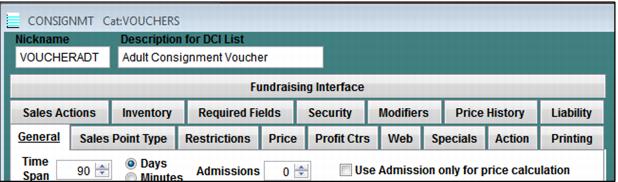
1. Enter a Nickname, Description and Time Span on the General tab.
Notes: Setting the valid dates of the vouchers: The time span of the voucher item is set based on the expiration date of the vouchers. For example, vouchers that expire one year after the date of issuance would have a time span of 365 days. If the voucher items need to have a variable expiration date based on the hotel/tour operator to whom they are sold, check the Calculate specific end time dynamically box. This allows an operator to set the valid dates of the vouchers at the time they are issued. When using the Calculate specific end time dynamically option to set the valid dates of the vouchers, the sales action macro SELECTLAST()DATETIME() can be used to prompt the operator to set the valid dates (the macro pops open the Date/Time dialog after adding the item to the sale).
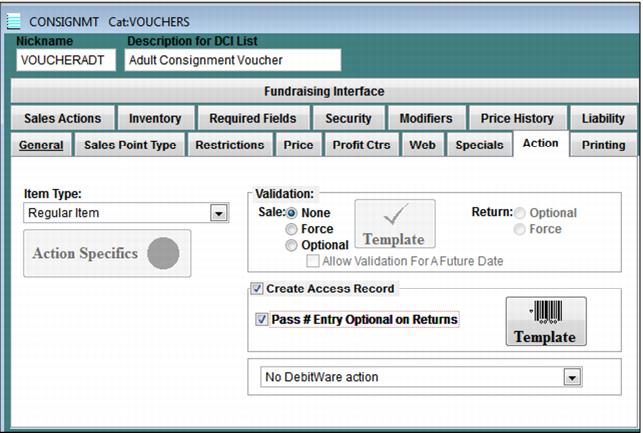
2. Go to the Action tab and check Create Access Record.
3. Click on the Template button.
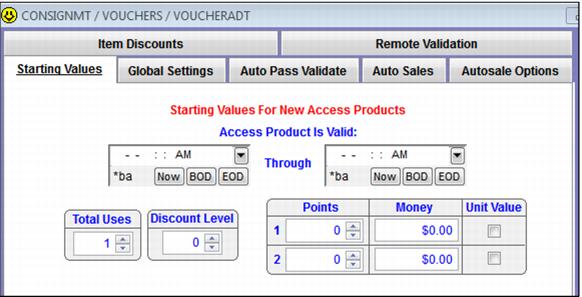
4. Enter 1 within the Total Uses field on the Starting Values tab.
Note: If all of your vouchers expire based on an operating season, the valid dates of the voucher can be entered within the Starting Values tab instead of using the time span setting options described in step 1.
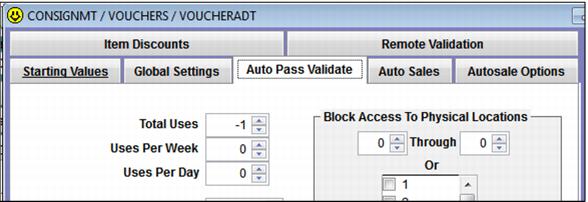
5. Go to the Auto Pass Validate tab and enter -1 for Total Uses. This setting deducts one total use from the voucher when it is scanned/redeemed.
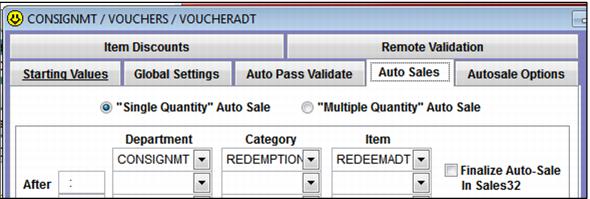
6. Go to the Auto Sales tab and select the ticket item that is auto-sold when the consignment voucher is scanned/redeemed. The auto-sold item typically generates revenue and admissions. If you want to prompt the operator to finalize the sale immediately after the voucher has been scanned, check the Finalize Auto-Sale in Sales32 box.
Auto-Sale scenarios:
• If the Finalize Auto-Sale In Sales32c check box is NOT checked (as in the screenshot above), and the auto-sold item is sold to an account/invoice (the typical consignment redemption scenario), you will be prompted with a, “Finalize Sales?” message. If you select OK, then the sale will be finalized and charges, if any, will be posted to the account/invoice. The operator will never see the Finalize dialog. If you select Cancel then you can keep scanning more vouchers and/or adding items.
• If this box is NOT checked (as in the screenshot above), and the auto-sold item is NOT sold to an account/invoice you will not be prompted with this message.
• If this box IS checked and the auto-sold item costs $0, the sale will be immediately finalized (whether or not the auto-sale is on account doesn’t matter).
• If this box IS checked and the auto-sold item costs more than $0, the system will act as though the operator pressed the Finalize button, and he/she can cancel out of Finalize, collect payment, post charges to the account, etc.
Important pricing notes: When scanning/redeeming consignment vouchers within the Sales application, the auto-sold item can be priced using Dynamic Pricing Rules (see the Salesware Dynamic Pricing document). When scanning/redeeming consignment vouchers within the ScanMan or GateKeeper applications, the auto-sold item cannot be priced using Dynamic Pricing Rules. (ScanMan and GateKeeper modules do not contain the Dynamic Pricing Rule logic.)
Also, when scanning/redeeming consignment vouchers within Sales, tax on the auto-sold item can be included in its configured price (the price of the item including taxes can be entered on the Price tab without the Add tax box checked). But when scanning/redeeming consignment vouchers within the ScanMan or GateKeeper applications the Add tax box on the auto-sold item must be checked in order to calculate taxes correctly (the price of the item before taxes are entered on the Price tab with the Add tax box checked.)
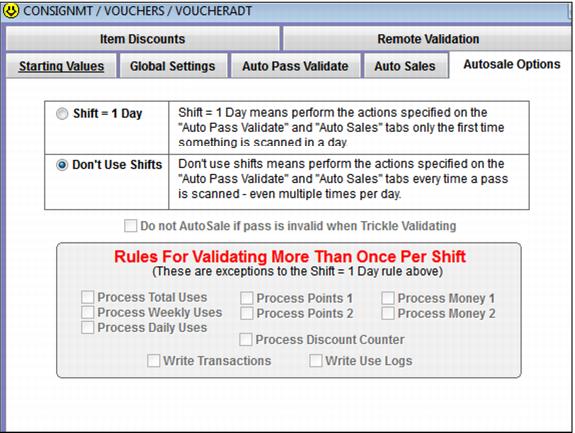
7. Go to the Autosale Options tab and select Don’t Use Shifts. Don’t Use Shifts deducts a use and auto-sells the item specified on the Auto Sales tab each time the voucher is scanned. This setting prevents a customer from using the same voucher more than one time – even within the same day. If the guest is allowed multiple entries within the same day, select Shift = 1 Day. Shift = 1 Day deducts a use and auto-sells the item specified on the Auto Sales tab only the first time the voucher’s barcode is scanned in a given day. Subsequent scans within the same day do not deduct uses or do any auto-sales. Typically, Don’t Use Shifts is used when redeeming consignment vouchers at a salespoint and Shift = 1 Day is used when redeeming consignment vouchers remotely at a gate or lift entrance.
8. Save your changes to the Access Record’s Template.
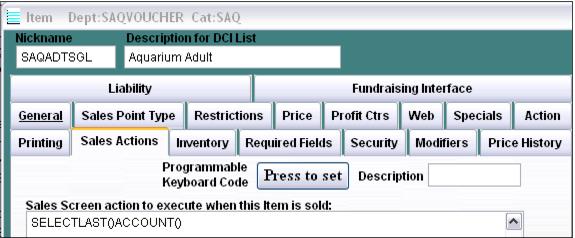
9. Optional: You can insert a sales action macro that helps your operators remember to sell these vouchers on account: SELECTLAST()ACCOUNT().
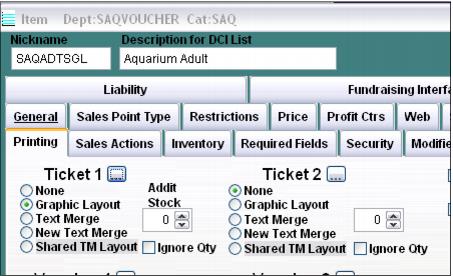
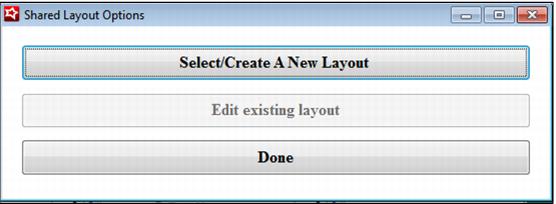
10. Attach a layout to the voucher items by clicking on the Printing tab. Select the appropriate printing method (Graphic Layout, Text Merge, or Shared TM Layout) under Ticket 1, Ticket 2, Voucher 1, or Voucher 2 based on the printers used at the salespoints that are issuing the vouchers. If using Text Merge, click on the … button in order to insert the syntax of the layout directly within the item. If using the Graphic Layout or Shared TM Layout options, browse to and select the appropriate layout file by clicking the … button. See the Salesware Layouts document for more information.
Note: on encoding barcodes for consignment programs: If you plan on scanning/redeeming the vouchers within Sales, you need to include a %A prefix in the barcode. This prefix triggers the action of auto-selling an item within the Sales application. When scanning/redeeming vouchers remotely with ScanMan or Gatekeeper applications, the %A prefix is not necessary. Please refer to the Salesware Layouts document for more information on configuring Ticket and Voucher layouts with Access Control barcodes.