Detailed steps
1. Click on the Category in which the item is located and click the New button (remember − the DCI is organized based on reporting).
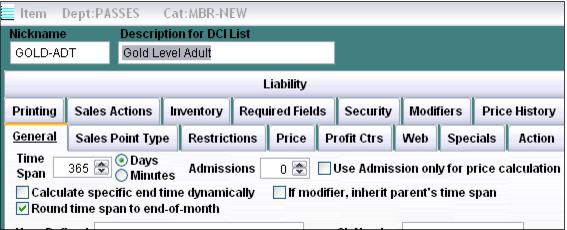
2. Enter a Nickname for the item. The Nickname must be unique within the Category and can be up to ten characters.
3. Enter a Description for the item. This is what the operators see at the Point-of-sale and can be up to twenty-five characters.
4. Enter the appropriate Time Span for the memberships. For example, if the membership is valid for one year, enter 365 days. You can also round the expiration date to the end of the month (for example, a membership purchased on May 15, 2006 would be valid until May 30, 2007). Alternatively, you can hard-code the dates based on the operating season. (For example, all passes sold are valid from Nov 1, 2006 through May 1, 2007.) Hard-coded valid dates are set up in the Action Specifics for the pass (see step 11).
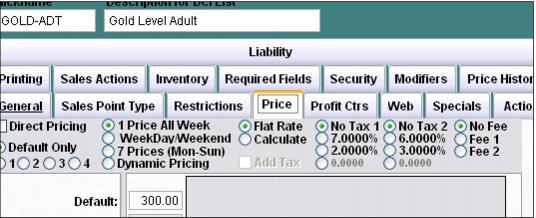
5. Click on the Price tab, select the appropriate pricing method, and enter the Price for the item. Select the appropriate tax rate if necessary. Remember to click the Add Tax box if the tax is added to the price of the item (without it checked, the tax is backed-out of the Price of the item).
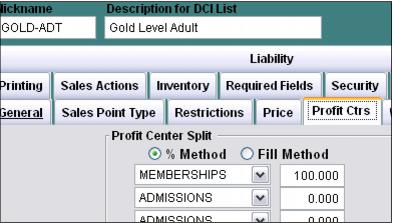
6. Click on the Profit Center tab and select the appropriate Profit Center. Revenue for the item can be split to up to six different profit centers. Using the % Method is recommended.
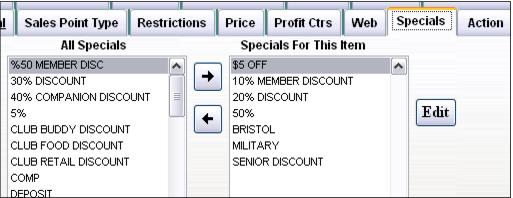
7. Click on the Specials tab and add any specials that are allowed to discount the item (that are not already considered “global” specials that can discount any item sold in the system).
8. Add any Modifiers necessary on the Modifiers tab. Remember that you can insert “blank” items (items with no descriptions) in order to create spaces between the modifier buttons at the point-of-sale.
9. Click on the Printing tab and make sure to select the appropriate printing method for Ticket 1, or Ticket 2, or Voucher 1 or Voucher 2 if a ticket prints when the item is sold.
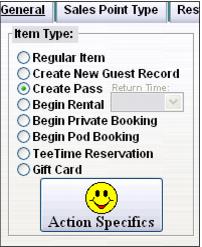
10. Click on the Action tab, select the Create Pass option, and click on the Action Specifics button.
11. If “hard-coding” valid dates of memberships based on the open season of the attraction, enter the dates on the Starting Values tab (for year-round attractions, the valid dates are usually established using time span – step #4). Enter the values to load on the pass. For instance, if the member is allowed ten guest day tickets, you can enter 10 within the total uses field, or one of the Points or Money fields.
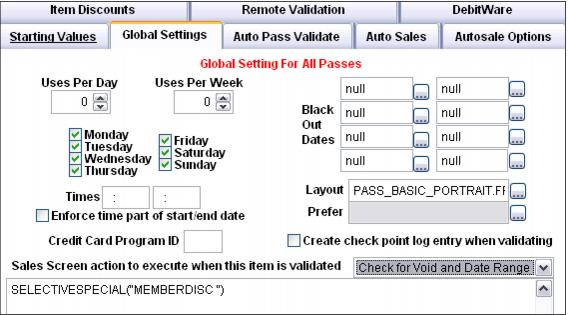
12. Click the Global Settings tab in order to enter certain dates when the membership is not valid for use (for instance, over certain days of the week or holiday periods). Select the layout that is used for this membership. Also, if the membership card is able to be swiped at the point-of-sale in order to apply discounts to the purchases, list those discounts that are applied when the membership card is swiped within the Sales Screen action to execute when this item is validated box. Make sure to select Check for Void and Date Range so that voided or expired memberships do not receive the discount.
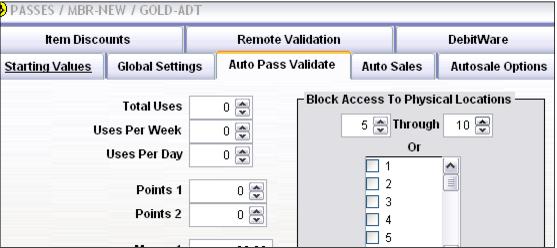
13. Click on the Auto Pass Validate tab and enter the number of total uses that are deducted from the pass record when it is scanned; this most likely is always 0, because memberships are typically valid through a date range and not for a specific number of entrances. You can also block access to certain locations in order to ensure that specific memberships are only used at certain attractions. If you choose to block access based on location, make sure to establish the location numbers that represent each attraction prior to configuring your membership or pass items (or you end up editing all the pass items later….).
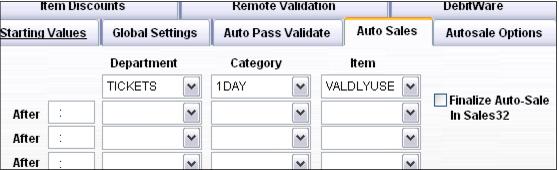
14. If necessary, click on the Auto Sales tab to select the ticket that is auto-sold behind the scenes when the membership is scanned at the gates (typically this is used to generate “admission” counts).
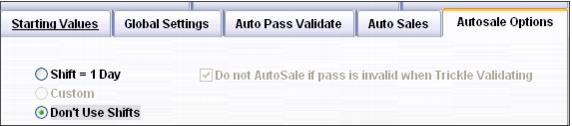
15. Click on the Autosale Options tab and either select Shift = 1 day or Don’t use shifts. If the guest may enter the attraction multiple times within the same day, Shift = 1day is selected. If the guest may only enter one time in the day, or for multi-ride products, Don’t use shifts is selected.
16. Save your changes.
17. Once your membership items are configured within the DCI list, the next step is to insert them into the appropriate salespoint menu. To do this, click on the Item Tree button in SysManager.
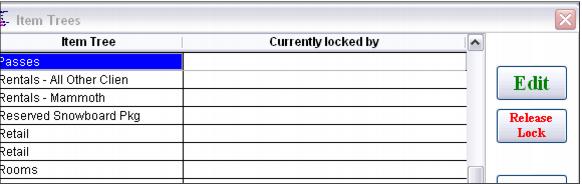
18. Select the appropriate Item Tree (menu used at the salespoints).
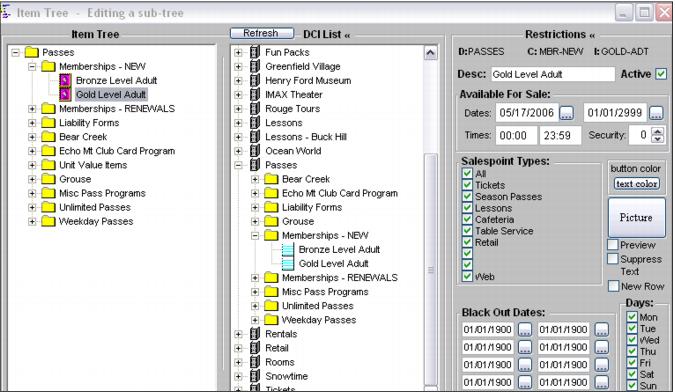
19. Expand the DCI “tree” on the right-hand side and drag the items into the Item Tree. You can arrange the order in which the items appear as well as edit the text and button color. Remember that you can insert “blanks” along with starting new rows in order to customize the look of the menu in Sales. Also, if this item does not appear in the menu in Sales during certain date ranges or days of the week, you can enter these restrictions by selecting the item in the Item Tree side and configuring the appropriate restrictions (shown on the right hand side of the dialog).