Setting | Description |
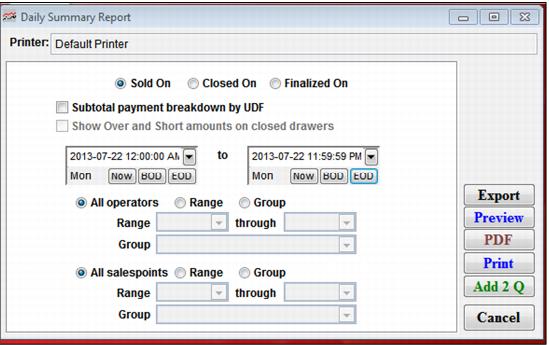
Sold On | Select this to report by items sold during the specified time period. |
Closed On | Select this to report by items when drawer was submitted and closed on from salespoint. |
Finalized On | When the closed drawer finalized via ReportManager. |
Subtotal payment breakdown by UDF | Select this to view subtotal of payment breakdown by user defined field in the report. Note: Set up UDF in SysManager > Activities > Financial Lists > Payment Types. |
Show Over and Short amounts on closed drawers | Select this to optionally print an over-short report for the specified criteria. This shows over and short amounts by payment type for closed drawers. Note: This option is only available if reporting by Closed On or Finalized On. Option is disabled if Sold On is selected. |
Date Range | Select a date range for which to print daily summary information. |
Filter Operators | Select this to select a range of operators to report on. |
All salespoints | Select this to view all salespoints (default). |
Range | Select this to activate the range of salespoints. |
Group | Select this to activate the range of salespoint groups. |