Setting | Description |
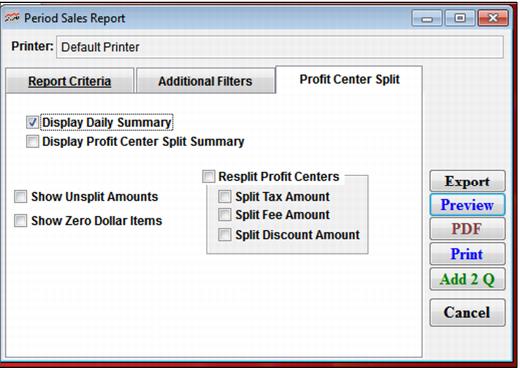
Display Daily Summary | Select this to include the Daily Summary Report. Note: This option is only allowed to be checked when the Period Sales Report is run by Sold On, Closed On, or Finalized On. Option is disabled when the Period Sales Report is run by Valid On. |
Display Profit Center Split Summary | Select this to include the selected profit center split data in your report. |
Show Unsplit Amounts | Select this to include a summary of the amounts allocated to taxes, fees and discounts, etc. |
Show Zero Dollar Items | Select this to include $0 items. Note: Some resorts like $0 items to be grouped by profit center in order to calculate yield based on quantity. If you want to report on $0 items, each item must be assigned a profit center, or None if no profit center. Otherwise, the items with no profit center all show up in the first profit center. |
Resplit Profit Centers | Select this to re-allocate historical sales to current profit centers in the report. Note: Re-splitting profit center amounts does not change the actual money allocated to each profit center – it simply shows you how the money would have been allocated given that your profit center split was defined that way. Note: Transactions that do not have items associated with them cannot be re-split because there is no item from which to get the split information. These transactions show in invoices with **TRANS** in the Department, Category and Item fields – they are created in SysManager or any time a payment is applied to an invoice through Sales without selling an item. |
Split Tax Amount | Include the tax amount in the money to be re-split.* |
Split Fee Amount | Include the fee amount in the money to be re-split.* |
Split Discount Amount | Include the discount amount in the money to be re-split.* |