Setting | Description |
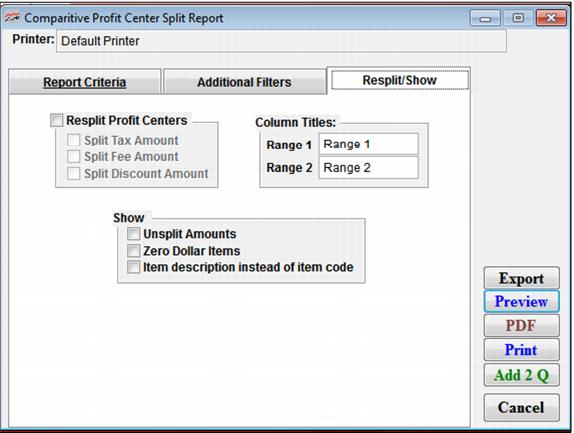
Resplit Profit Centers | Check this box if you would like to re-allocate historical sales to current profit centers. When this box is checked, a warning message is displayed, informing you that, “Re-Splitting Can Take a LOT of Time” and asking you if you are sure. If you responded by clicking Yes, the three check boxes underneath it become active. Note: Profit centers are usually where profit is allocated (i.e., after taxes, fees and discounts are taken out). However, sometimes it is useful to see amounts split out differently. So, these check boxes allow you to see what the effect would be if you allocated amounts differently. For example, ignoring discounts, how much money would have gone to each profit center? In this case, the Split Discount Amount check box would be checked to include this money in the amount to be split. |
Split Tax Amount | Check this box if you want to include the tax amount in the money to be re-split.* |
Split Fee Amount | Check this box if you want to Include the fee amount in the money to be re-split.* |
Split Discount Amount | Check this box if you want to Include the discount amount in the money to be re-split.* |
Column Titles: Range 1 and Range 2 | Allows you to customize the column titles for Range 1 and Range 2 comparisons. |
Show: Unsplit Amounts | Select this to include unsplit amounts in the report. |
Show: Zero Dollar Items | Select this to include zero dollar items in the report. |
Show: Item description instead of item code | Select this to include item description instead of item code in the report. |