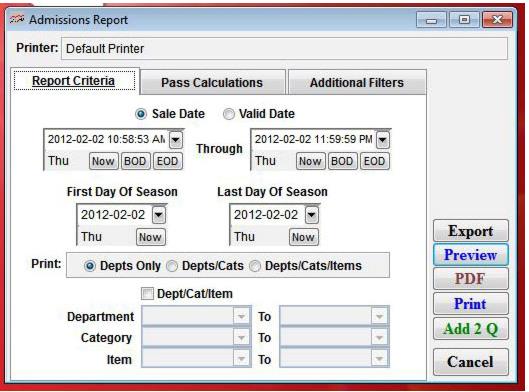
Setting | Description |
Sale Date | Select this to review admissions sold for the date range. |
Valid Date | Select this to review admissions valid for the date range. Note: If you sell items with multiple admissions per item but have a SysManager > Activities > DCIs > New/Edit > General tab > Time Span of only a single day, you must specify how admissions are counted from SysManager > Preferences > Passes (also applies to tickets). If Admissions (front loaded) is selected, just one admission is counted per item, regardless of how many admissions are specified from the SysManager > Activities > DCIs > New/Edit > General tab > Admissions spinner. If Time Span (% spread) is selected, the number of admissions selected from the SysManager > Activities > DCIs > New/Edit > General tab > Admissions spinner are counted for the item. The Admissions or Time Span button has no effect for admissions reporting. |
… Through … | Select a date range for which to view admissions using the Beginning and Ending Date fields. |
First Day of Season | Enter the first day of your ski season to estimate season pass usage. |
Last Day of Season | Enter the last day of your ski season to estimate season pass usage. |
Print: Depts Only, Depts/Cats, Depts/Cats/Items | Choose the level of product detail for the report to cover – Departments only, Departments and Categories, or Departments, Categories and Items. |
Dept/Cat/Item | Select this to select a range to report on (numeric-alpha order). |