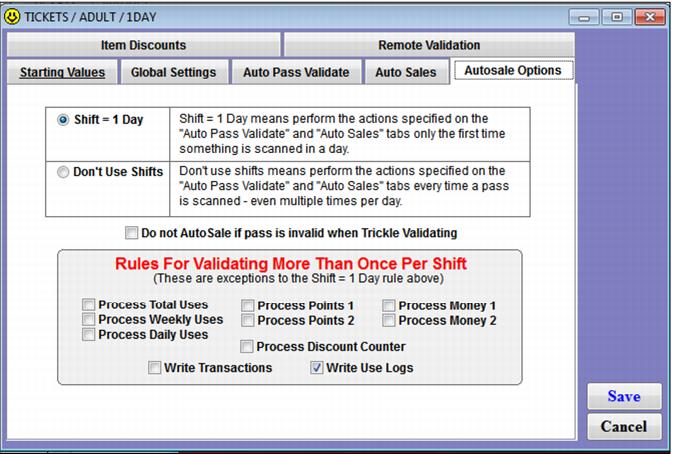
Check box | Definition |
Process Total Uses | If using the Shift = 1 Day option, perform the action configured on the Auto Pass Validate tab for Total Uses every time the pass or ticket is scanned, not just the first time the pass or ticket is scanned in the same day. |
Process Weekly Uses | If using the Shift = 1 Day option, perform the action configured on the Auto Pass Validate tab for Weekly Uses every time the pass or ticket is scanned, not just the first time the pass or ticket is scanned in the same day. |
Process Daily Uses | If using the Shift = 1 Day option, perform the action configured on the Auto Pass Validate tab for Daily Uses every time the pass or ticket is scanned, not just the first time the pass or ticket is scanned in the same day. |
Process Points 1 | If using the Shift = 1 Day option, perform the action configured on the Auto Pass Validate tab for Points 1 every time the pass or ticket is scanned, not just the first time the pass or ticket is scanned in the same day. |
Process Points 2 | If using the Shift = 1 Day option, perform the action configured on the Auto Pass Validate tab for Points 2 every time the pass or ticket is scanned, not just the first time the pass or ticket is scanned in the same day. |
Process Money 1 | If using the Shift = 1 Day option, perform the action configured on the Auto Pass Validate tab for Money 1 every time the pass or ticket is scanned, not just the first time the pass or ticket is scanned in the same day. |
Process Money 2 | If using the Shift = 1 Day option, perform the action configured on the Auto Pass Validate tab for Money 2 every time the pass or ticket is scanned, not just the first time the pass or ticket is scanned in the same day. |
Process Discount Counter | If using the Shift = 1 Day option, increment the Discount Counter every time the pass or ticket is scanned, not just the first time the pass or ticket is scanned in the same day. |
Write Transactions | If using the Shift = 1 Day option, do the auto-sale action configured on the Auto Sales tab each time the pass or ticket is scanned, not just the first time that the pass or ticket is scanned in a single day. |
Write Use Logs | If using the Shift = 1 Day option, write a use log into the gst_actv table each time the pass or ticket is scanned in order to record all scan activity in a day, not just the first scan that occurred in the day. |