Parent pass validation (auto validation option)
Parent pass validation allows a single pass record to be loaded with all of the value and have multiple passes linked back to that parent pass in order to deduct or add values.
Example:
A 50-Day pass package allows an entire family to share fifty days’ worth of use. Each family member has his own pass, but when the linked guests’ passes are validated the uses are all deducted off of the parent pass that contains the fifty uses.
Note: In order for this program to work properly, the guests sharing this program must be linked properly to the parent guest record. This is done in Sales by using the Set Primary button on the guest record.
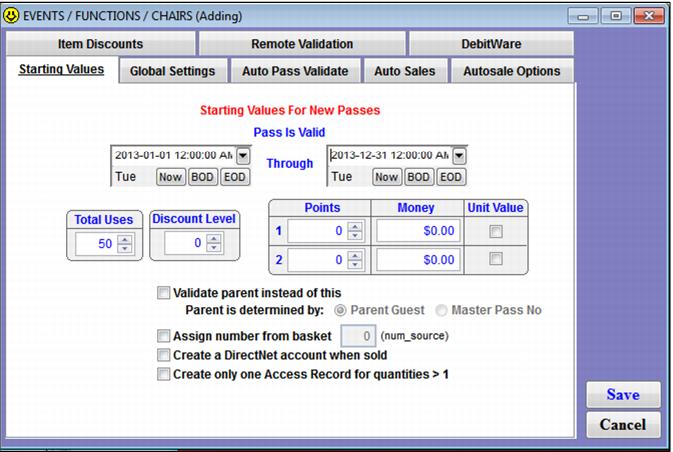
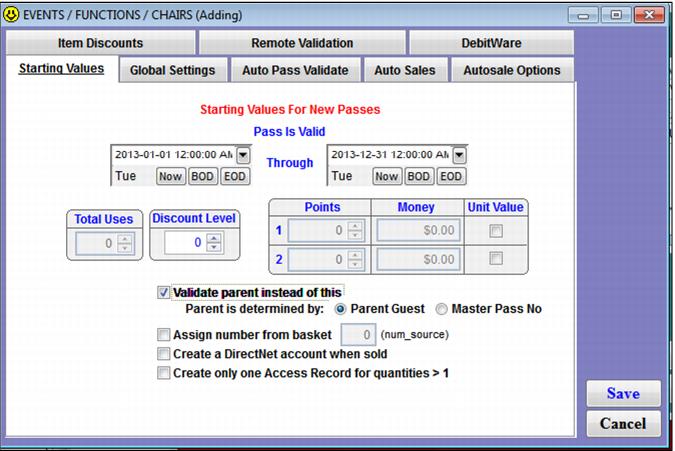
To set up parent pass validation, one pass DCI is created that represents the parent pass and contains all of the necessary value. Then, a second pass DCI is configured that has the SysManager > Activities > DCIs > New/Edit > Action tab > Create Pass radio button > Action Specifics button > Starting Values tab > Validate parent instead of this check box checked. During the sales process it is critical that the operator verify that the guests are linked together properly with parent/child relationships!
This functionality has the following limitation: Parent pass validation validates the first pass located for the parent. This means that if the parent guest record has multiple pass records, when child passes are validated the value is added or deducted off of the first pass located for the parent. However, passes can be linked and the parent/child pass relationship can be established manually after the passes have been sold separately. To do this, look up the child guest from Sales > Guest Lookup, go to Pass Inquiry and modify the selected pass. On the Pass Dialog, press the Master Pass button and enter the parent pass information to set the link. After the link has been set, the main Pass Information dialog displays the link information, which looks like the example below. The same text also displays in the parent pass information:
Linked Passes (* indicates top level pass):
Pass: 4003001*, PEPPER SCOTT, Master Pass
Pass: 5003001, MAXIE SCOTT, Family Member Pass
To support this functionality in SysManager, the Activities > DCIs > New/Edit > Action tab > Create Pass radio button > Action Specifics button > Starting Values tab includes a Validate parent instead of this/Parent is determined by check box, with the following two options – by Parent Guest or by Master Pass No. The guest’s Pass Edit includes the Master Pass # field if the pass is set to be validated against a master pass. This field displays both the master pass number and the guest name of who holds the master pass.
The following screen capture shows how to configure a parent pass that contains the value:
The following screen capture shows how to configure a child pass that deducts (or adds) value to the parent pass when validated:
The sale process must include operator verification and/or linking of the appropriate parent/child relationships, as shown in the following screen capture: