External validation using exceptions tables
External validation using the Exceptions tables allows pass numbers issued outside of Salesware module to be validated by the ScanMan or GateKeeper scanning applications. Because these pass numbers are issued outside of Salesware module, only a very simple validation is performed on these numbers. The pass number scanned is checked within the Exception tables in order to verify that the number is valid. The scan is then logged in the exceptions_log.dbf in order to provide a record of usage. The Scan Activity Report in ReportManager can include data from the exceptions log.
To set up this program:
1. Create folder in C:\Siriusware\Data called ExceptionsTables
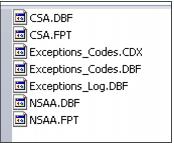
2. Place the exception files into ExceptionsTables folder. The required files are:
a. Exceptions_codes.dbf
b. Exceptions_codes.cdx
c. Exceptions_log.dbf
d. ExampleProgram.dbf
e. ExampleProgram.fpt
Note: These files must be obtained from Siriusware Technical Support.
3. Set up Exceptions_codes table records (one record per program) to identify pass numbers issued outside of Salesware module. Using Helper utility, open the Exceptions_codes table. Select the Append option and append one blank record. Enter the code, description and table_name for the external program.
Example:
A CSA card has valid range of 0056000001 – 0056000800:
• 00 – Characters to strip
• 56 – Code for CSA cards
• 1 to 800 – Number range of valid cards
Field | Description |
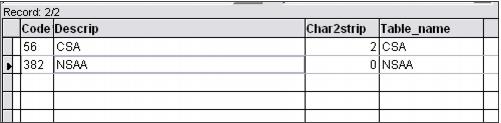
Code | Prefix identifier that can be up to three characters long (e.g., Code=56). |
Descrip | Name of external program (e.g., CSA) that can be up to fifty characters long. |
Char2strip | The number of characters to strip from the beginning of the barcode (e.g., Char2strip= 2 in order to strip the first two zeros from the barcode). |
Table_name | Name of exception table that is referenced in order to obtain the valid range of numbers. This field can be up to twenty characters long (e.g., CSA). |
4. Create tables (for each external validation program) that are used to hold the number ranges of the program. Start by using Example table (ExampleTable.dbf) and make a copy of the .dbf and .cdx files. Rename the files according to the table names inserted within the Exceptions_codes table records (e.g., CSA). Edit the new table using Helper utility and set the starting and ending numbers in order to define the valid card ranges for the program.
Field | Description |
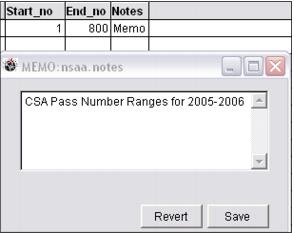
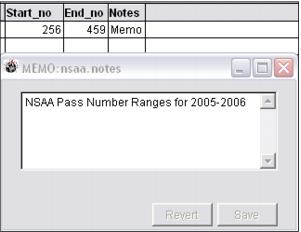
Start_no | Starting card number for program (For above example, start_no = 1). |
End_no | Ending card number for program (For above example, end_no = 800). |
Notes | Store details of program here for reference. |
5. Repeat steps 3 and 4 if necessary for each external validation program to be implemented. The result is one table per program that lists the valid number ranges of the program and one record per program within the Exceptions_Codes table.
The following screen capture shows a sample Exceptions_Codes table:
The following screen capture shows the corresponding Pass Number Range tables per program:
The following screen capture shows the corresponding program number ranges per table:
6. Add the appropriate settings to the SalesEZ.INI and ReportManager.INI files for use in validation and reporting. Sample settings:
[Data]
ExceptionsPath=\\fileserver\Siriusware\Data\ExceptionsTables
TrainingExceptionsPath=\\fileserver\siriusware\Data\ExceptionsTables.TNG
7. Remove the blank prefix from the SysManager > Preferences > Access Control table. To remove the blank prefix, go to SysManager > Preferences > Access Control and select the blank prefix and select the Delete button.
8. Other important notes:
a. There cannot be a blank prefix in the prefix table (SysManager > Preferences > Access Control). If a blank prefix exists (by default the system has a blank prefix pointing to the gst_pass table) all numeric-only scans go to the Salesware table configured for the blank prefix (either access or gst_pass). With the blank prefix removed, all numeric-only scans are processed based on the exceptions table.
b. The exceptions tables are always visual FoxPro tables (.dbf) even if the back-end is SQL.
c. Exceptions tables cannot have the same names as tables within the SiriusSQL database.
Please consult Siriusware Technical Support before implementing any exception table validation programs!