WAN validation
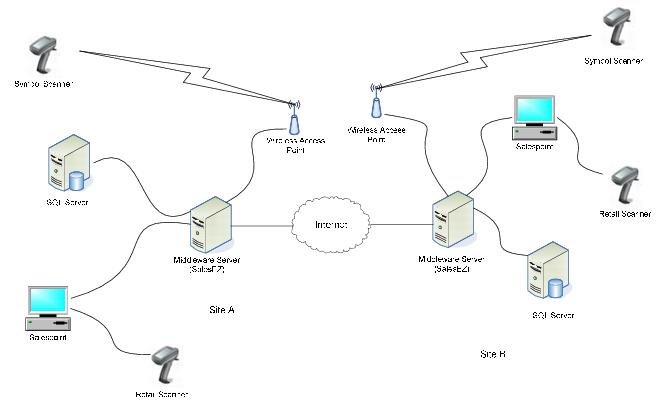
WAN validation is way to share programs between multiple sites. WAN validation can occur at remote scan locations using ScanMan or GateKeeper (auto-validation programs such as a ticket getting scanned at the entrance to a venue) or within Sales when validating with a DCI (a pass holder presents his/her pass in order to receive a discount on a guest one-day entrance ticket). The following figure shows the basic architecture:
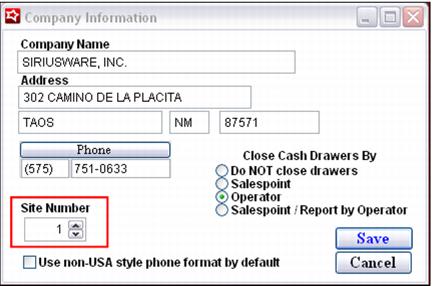
Each site that shares programs uses a different site number. This site number is set up in SysManager > Preferences > Company Information > Site Number. It is critical that once set, this site number is never changed when using WAN validation programs!
This site number is then embedded into every guest, pass and access record (it is also embedded in numbers such as sale numbers, transaction numbers and reservation numbers).
Example:
Pass #251006010 is the 251st pass created at salespoint number 6 at site 10.
When an access or pass record is scanned or swiped at a site other than where the ticket or pass was produced, the validation of that non-local ticket or pass is re-routed back to the site that created the ticket/pass. The validation of the ticket or pass actually occurs back at the originating site and the resulting “good” or “bad” response is given back to the site currently scanning or swiping the non-local ticket or pass.
Where validation occurs is totally transparent to the salespoint. The salespoint simply hands off validation to the local SalesEZ application and SalesEZ “talks” across the WAN to SalesEZ at the site where the ticket or pass was created (assuming it wasn’t created at the local site). The instances of SalesEZ application on either side of the connection “talk” using TCPEZ application, which is installed as part of Common Files application. Similarly, when using ScanMan module, the local instance of SalesEZ application simply hands off validation across the network to the remote instance of SalesEZ where the pass or ticket was created.
If the scan and validation causes an item to be auto-sold, the auto-sale occurs locally if the scan is made from a salespoint, regardless of where validation occurs (validation is transparent to the salespoint). However, if the scan is made using ScanMan module, the auto-sale occurs at the site where the ticket or pass was created (where validation actually occurs). When using WAN validation, this is an important difference between scanning from the salespoint and using ScanMan module. Also note that auto-selling an item from a salespoint when validation occurs across the WAN requires that the item to be validated has the exact same DCI at both sites and is set up exactly the same way using SysManager.
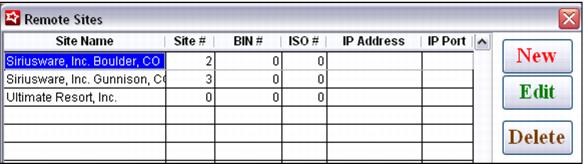
In order to set up WAN validation, the sites sharing programs must be set up in SysManager > Preferences > Remote Site Setup (WAN Validation).
To add a new site:
1. Click the New button.
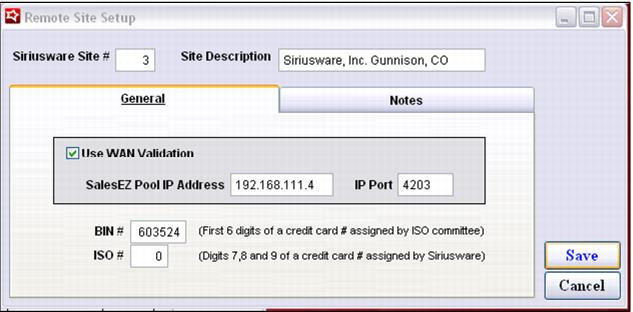
2. Enter the appropriate site number and description.
3. Check the Use WAN Validation box and enter the IP address of the site’s SalesEZ computer and the port number.
4. If validating with card numbers, the unique BIN and/or ISO numbers used per site may also be entered. When a non-local card number is scanned or swiped, the BIN/ISO setup within the Remote Site Setup preferences are used to re-route the validation back to the appropriate SalesEZ computer (as opposed to the embedded site number in an access or pass record).
Note: The Remote Site Setup preferences are also used when sharing programs between multiple sites using SQL replication instead of WAN validation. When sharing programs with SQL replication (essentially replicating all access and pass records to each site which essentially makes all numbers “local") it is important to list all sites within the Remote Site Setup preferences menu – but do not enter an IP address. The presence of an IP address always triggers the re-routing of the validation back to the originating site.
The programs shared between sites must be specified within the access template or pass action specifics on the Remote Validation tab. This prevents all ticket DCIs or all pass DCIs from being used throughout all sites. The sites listed on this tab vary based on the site validating the pass.
Example:
Site BLUE and site GREEN share the Adult Unlimited Pass program, but site ORANGE does not.
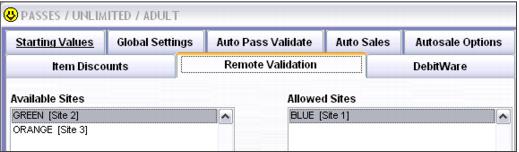
The following screen capture shows the site GREEN Remote Validation tab for the Adult Unlimited Pass:
When an Adult Unlimited pass created at site GREEN is scanned at site BLUE, the validation is re-routed back to site GREEN. The Validation Rules for the Adult Unlimited Pass configured at site GREEN confirm that site BLUE is allowed to scan these types of passes. A, “good,” message is returned to the operator at site BLUE.
If an Adult Unlimited Pass created at site GREEN is scanned at site ORANGE, the validation is re-routed back to site GREEN. The Validation Rules for the Adult Unlimited Pass configured at site GREEN confirm that site ORANGE is not allowed to scan these types of passes. A, “bad,” message is returned to the operator at site ORANGE.
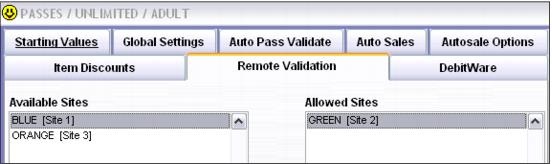
The following screen capture shows the site BLUE Remote Validation tab for the Adult Unlimited Pass:
When an Adult Unlimited Pass created at site BLUE is scanned at site GREEN, the validation is re-routed back to site BLUE. The Validation Rules for the Adult Unlimited Pass configured at site BLUE confirm that site GREEN is allowed to scan these types of passes. A, “good,” message is returned to the operator at Site GREEN.
If an Adult Unlimited Pass created at site BLUE is scanned at site ORANGE, the validation is re-routed back to site BLUE. The Validation Rules for the Adult Unlimited Pass configured at site BLUE confirm that site ORANGE is not allowed to scan these types of passes. A, “bad,” message is returned to the operator at site ORANGE.