How to… guide for employee discounts with a pass swipe
Step 1: Set up your specials
Start by setting up the appropriate specials. Make sure to set up the correct discount amount and limit the special to the correct salespoint type (if applicable).
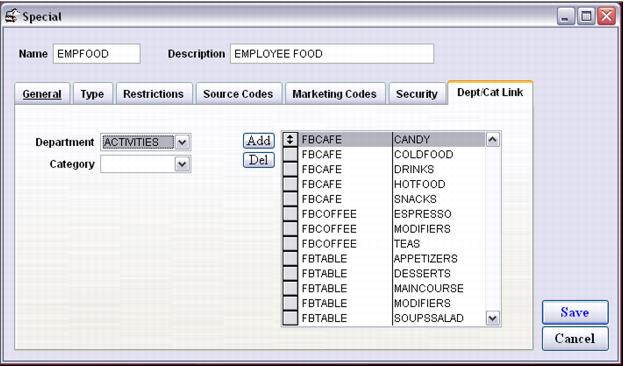
The following screen captures show how to configure a 50% employee food discount:
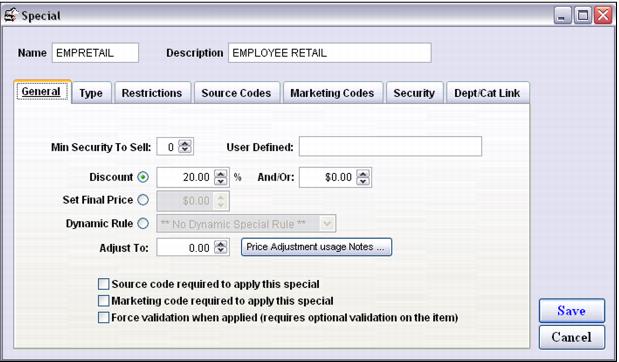
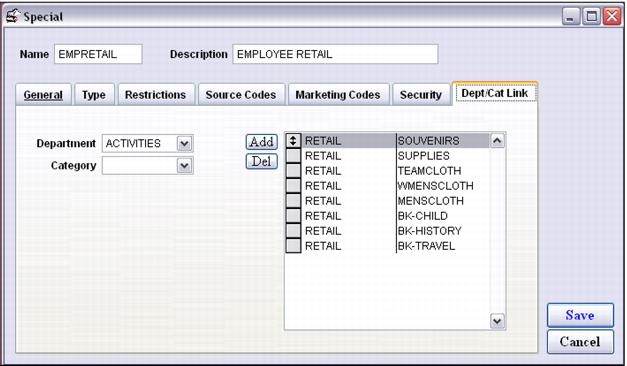
The following screen captures illustrates a 20% employee retail discount:
Step 2: Set up your pass (discount card)
• Create the employee pass item and go into the Action Specifics button.
• Click on the Global Settings tab and enter a macro that auto applies the applicable specials with a swipe of the pass.
• An unlimited number of specials may be entered in this macro. Two specials are used in this example: the employee food discount and the employee retail discount. The IGNOREERRORS() piece of the macro prevents operators from getting annoying messages each time a special fails due to restrictions.
• When entering the nickname of a special within the macro, make sure to pad the nickname out to ten characters.
• Also, use GLOBALSPECIAL() if the special listed is configured as a global special and use SELECTIVESPECIAL() if the special listed is specifically linked to certain items.
• It is also recommended that Check for Void and Date Range is selected from the dropdown just above the Sales Screen action to execute when this item is validated box. This prevents a pass holder from getting the specified discounts if their pass has expired or has been voided for some other reason.
The macro reads:
IGNOREERRORS()SELECTIVESPECIAL('EMPDSCFOOD')SELECTIVESPECIAL('EMPDSCRET ')
Step 3: Create the necessary field on the pass layout
There are a couple of options for encoding the pass number into the magswipe. The main issues to consider are whether or not the pass magswipe is used in more than one type of program and ease of use for your operators.
Options:
1. Encode the pass number with a prefix that triggers the discount action
Or
2. Set up a hot key that sends in the discount prefix and just encode the pass number
Note: Track 1 can encode letters and numbers and track 2 can only encode numbers.
Option #1 – Encode the discount prefix and pass number
Use this option when you want to use the pass magswipe exclusively for discounts. Make sure that the employee pass has the following field in the layout. This field encodes the pass number into the first track of the magswipe:
"~1%EP"+alltrim(str(gst_pass.pass_no))+"?"
• The ~1 specifies track 1
• The %E triggers the action of a discount with a swipe
• The P is the Access Control prefix used for pass numbers
• The alltrim(str(gst_pass.pass_no)) is the pass number field
• The ? signals the end of the field
In order for operators to apply discounts with a swipe, they simply add all of the items to the sale and swipe the card. All appropriate discounts are applied.
Option #2: Only encode the pass number
Use this option in order to encode just the pass number. In this situation the pass number swipe may be used for many different programs and the %E prefix might prevent using the pass swipe for more than one type of validation program. Track 2 may also be used in this scenario as track 2 can only be encoded with numbers. See “common fields on pass layouts” in the Salesware Layouts document for a Sample Track 2 field.
Make sure that the employee pass has the following field in the layout. This field encodes the pass number into the first track of the mag swipe:
"~1"+alltrim(str(gst_pass.pass_no))+"?"
• The ~1 specifies track 1
• The P is the Access Control prefix for your pass numbers
• The alltrim(str(gst_pass.pass_no)) is the pass number field
• The ? signals the end of the field
Set up a hot key at salespoints that offer employee discounts. Do this by modifying the Sales32c.INI file at those salespoint (or alternatively modify the global .INI settings in SysManager) in the following manner:
[Preferences]
F11Text="%EP"
F11Track=1
F11Prompt="Swipe discount card"
You can use F10, F11 or F12. Make sure to specify the correct track that contains the encoded pass number. The F11Prompt setting is the user defined text that gives the operator instructions once they hit F11.
Step 4: Link the appropriate specials to your items
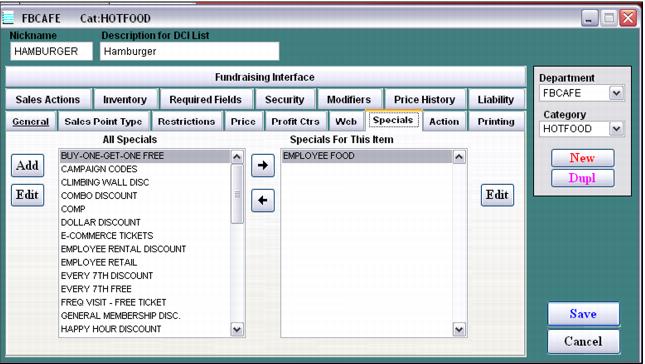
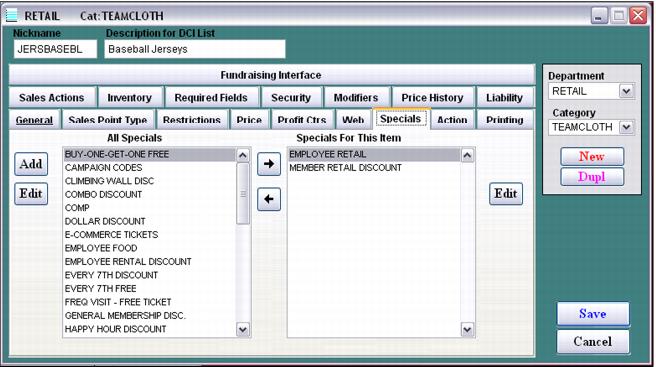
Next, link the appropriate specials to your items (only necessary for specials not configured as Global specials).
Step 5: Test! Test! Test!
Test everything! Make sure that the magswipes are encoded correctly (the correct number in the correct track), that the discounts are applied as expected, that voided passes do not work, hot keys work if applicable, etc.