Club Management group member log-in
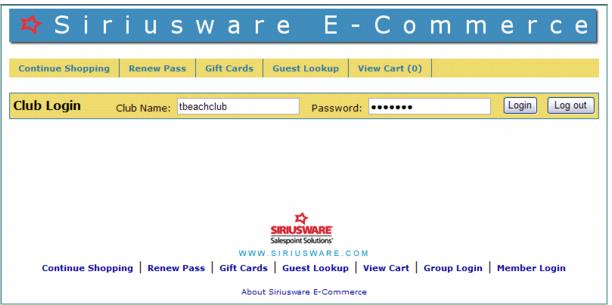
Visitors/guests that are eligible to log-into the special “group” or “club” area as a group member need access to the link to the group log-in page and the appropriate log-in name (account Nickname) and password (contents of the Group Member Password field).
In this example, the link provided to the guest is to the grpLogin.aspx page. With Site Admin Panel > Group/Accounts and Club Management Settings > UseClubLogin value = 1 in the site config file the guest is redirected to the grpLogin2.aspx page.
The log-in provided is: tbeachclub.
The password proved is: bigwave.
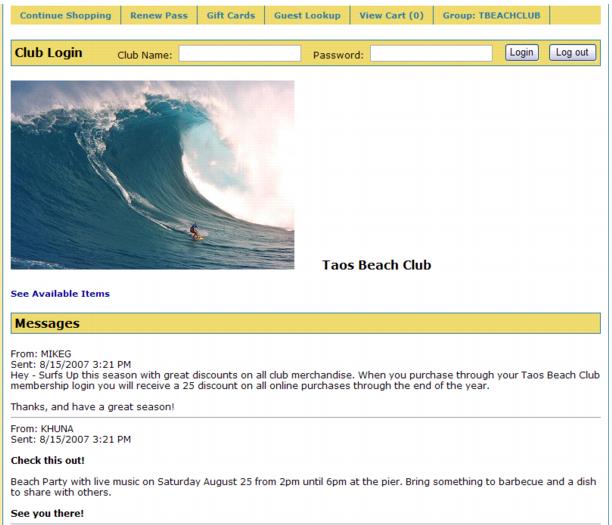
Once logged in successfully, the guest is taken to the main club page where he sees the name of his club/group, the logo/picture that was linked to the account, posted messages for him to read and a link to take him to the special item tree configured for the group.
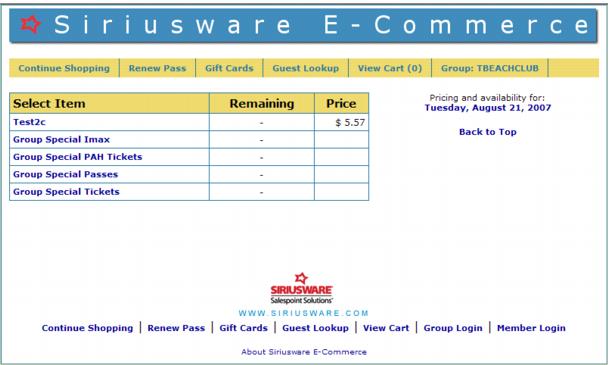
Clicking on the See Available Items link takes the guest to the ItemList.aspx page where the contents of the WEB TBEACHCLUB item tree are displayed.
Note: The guest can still see that he is logged into the group (Group: TBEACHCLUB) as displayed on the navigation bar towards the upper right part of the screen:
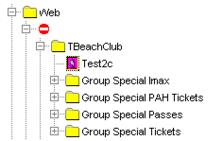
The following figure shows the corresponding item tree configured in SysManager:
The TBeachClub item tree folder is a part of the web item tree but is in a “blank” folder that is inactive as designated by the red circle with the dash through it. This is so that this folder and all its sub-folders are still part of the Web item tree, but they are not displayed to the general public shopping online at your site.