Types of drivers for use with Salesware
There are three types of drivers used with the printers that are used with Salesware:
• Generic/text-only
• Manufacturer-supplied text drivers
• Manufacturer-supplied graphics drivers
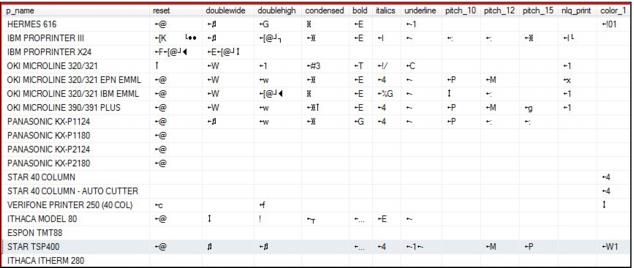
If you are using a Text layout, you output to a printer using either the generic/text-only driver or the manufacturer-supplied text driver. It is easier to install the manufacturer-supplied text driver, but your device does not operate as fast as it does with the generic/text-only driver. With Salesware, in almost all cases of Text Merge and Shared Text Merge layouts, you want to use the generic/text-only driver. When you use the generic/text-only driver, you have the option of accessing the Printers table in the local Siriusware\Sales\Data folder. The Printers table contains a list of printer-specific codes used for special printer functions such as bold, underline, italics and other useful printer functions such as the cut code (code used to automatically cut output into individual receipts, tickets, etc.). By using the Printers table, you can use a single layout for a variety of printer models and you do not have to manually put the character codes into the layouts. A portion of the Printers table is shown in the following screen capture:
To use the Printers table, you must select the printer you are using from the Sales > Tools > Sales Pt Setup > Printing > Dot Matrix Printer dropdown.
Example:
If you choose STAR TSP400, then the layout uses the codes highlighted in light blue in the screen capture for any layout calls made to the
Printers table. When making layout calls to the
Printers table, you replace any printer-specific codes you would otherwise use with calls to the
Printers table. So if the layout is coded with
Printers->doublewide, the salespoint pulls the
doublewide code for the STAR TSP400. If by accident you selected the STAR 40 Column printer from the dropdown and used the same layout, Sales would use the STAR 40 Column row and grab the
doublewide code from that row. Because the codes are usually different for different printers, it is important to select the correct one to get your layout to work properly. You can add additional devices if the device you are using is not listed in your table. See
Appendix C: Using the Printers table to handle control codes for receipt printers for a description of how to do this.
1. Manufacturer-supplied drivers are installed and used like any other Windows driver provided by the manufacturer of the device.