Associating the driver and printer with your layout
1. As already described in
Specific layout applications, you must associate a layout with one of the specific applications listed on the
Page 1,
Page 2 or
Page 3 tabs available from
Sales >
Tools >
Sales Pt Setup >
Printing. The
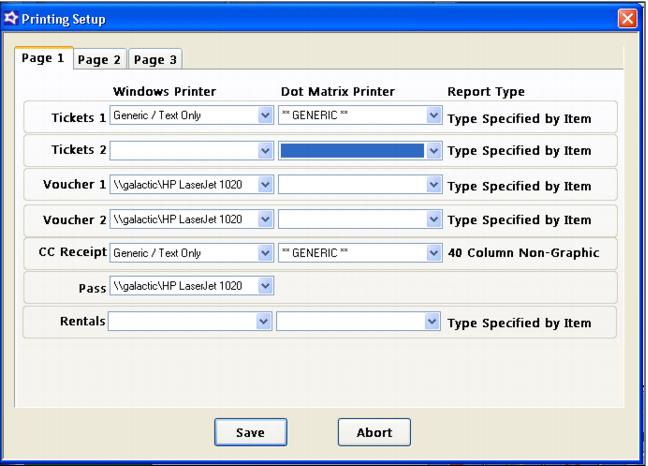
Page 1 tab is shown in the following screen capture.
To associate the layout/application with an output device, select the output device from the
Windows Printer dropdown. If you are using a manufacturer-supplied text or graphics driver, then you also need to select
**GENERIC** from the
Dot Matrix Printer dropdown. If you are using a generic/text-only driver, then select
Generic/Text Only from the
Windows Printer dropdown and select your particular output device from the
Dot Matrix Printer dropdown, as described previously. If your particular device is not listed under the
Dot Matrix Printer dropdown, you can experiment to see whether any similar devices that are listed work or you can add the new device. You can also simply select
**GENERIC** from the
Dot Matrix Printer dropdown instead.
**GENERIC** is simply an entry with no codes at all. See
Appendix C: Using the Printers table to handle control codes for receipt printers for more information.
Note: The label Dot Matrix Printer is retained from older versions of Salesware. Other types of printers are now supported by the Printers table as well.
Note: When utilizing Kiosks, it is by design that tendrretail .dll require a printer to be set whether named None or HP LaserJet 1020 as in the previous example. Even is no Credit Card receipt is to be printed the printer must still be set to None. If the printer line is left blank, the following error message occurs, “Printer Error” and the transaction may be cancelled.