Detailed Description
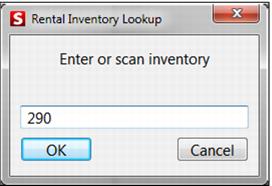
1. Start by reading the inventory RFID chip (see
Appendix C), scanning the inventory barcode or manually entering the inventory number. To manually enter a number, configure an
F key for this purpose:
F10Text=%RI
F10Prompt="Please Enter the Locker Number "
F10Label=Locker
F10Track=0
Note: Make sure to increase the scan interval setting to allow for hand-entry of the number. For instance, ScanCharacterInterval=2000 would allow a two second pause before assuming the operator was done typing the number. Only set this high of an interval at locations where hand-entry is necessary, otherwise the system seems slow when responding to card swipes or barcode scans.
2. Based on the status of the inventory, the Auto-Sale Rule is performing the specified actions. For instance, the sample rule for Lockers included in this document would produce the following actions:
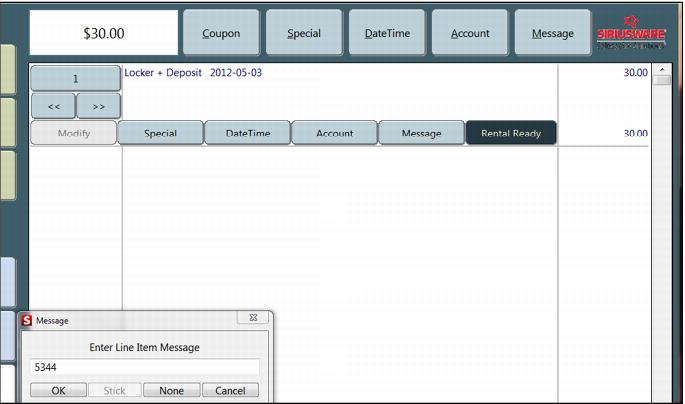
• Locker inventory is IN > a Daily Locker Rental item is sold > a prompt for a message appears > and a check-out is performed at Finalize.
• In the following example the Item Message may be some identifying pin like the last four digits of a guest’s telephone number or a name to associate with the key. This could be useful during the return process.
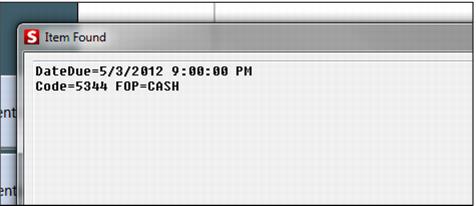
• Locker inventory is OUT and not overdue > the Autosale Rule displays: the message collected at check-out, the form of payment used for the initial check-out and the date due/duration of rental.
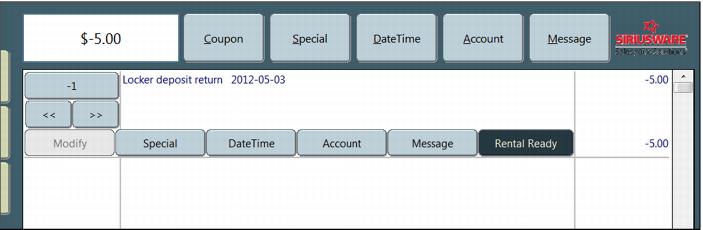
• When the operator clicks OK to this, the Locker Deposit Return item is added to the sale at a -1 quantity* and at Finalize a Check-In action is completed.
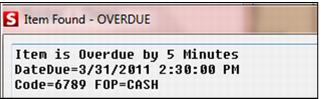
• If the item is OUT and overdue, a display of the overdue status are presented to the operator followed by the auto-sale of the Locker Deposit Return item at a -1 quantity.
Note: A Sales32c.INI setting can be added to bypass the security check, Sales – Allow Refunds (Quantity <0), when the negative quantity is set with a macro:
[Preferences]
QuantityMacroSecurityIgnore=TRUE
• If the inventory has any other status than OUT or IN, a display is presented to the operator noting the current status (no subsequent auto-sale.)
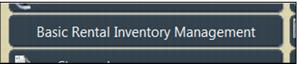
3. A Basic Rental Inventory Management Activity is available within Tools > Action (or MainButtonXX=RNT). This action can be used to put inventory into maintenance, remove it from maintenance, report lost/found, stolen/recovered or sold. To use this feature, type the inventory number and select the appropriate action.
Note: Based on the equipment’s current status, the options vary. For instance, if the inventory is currently in Maintenance, an option to Remove from Maintenance are available.
4. After the action has been selected, the operator is returned to the Inventory Number Entry dialog for quick entry of another number.