E-mailing confirmations
Before you can e-mail confirmation letters, you must first configure your salespoint to send e-mail. To do this, use the ConfigManager utility to set a salespoint’s e-mail preferences for use in PrintEZ application. For more information about ConfigManager utility, see the Salesware User Guide for Advanced Users.
To set up a salespoint to send confirmation letters:
1. Download the ConfigManager update file (c_confmgr_xxxx.exe) from the Siriusware Information Portal.
2. Install and run ConfigManager utility as described in the Salesware User Guide for Advanced Users. Installation of ConfigManager utility is manual. Currently there is no installer you use to install it. However, ConfigManager utility includes the ability to export a registry update file that you can use to update the registry on each computer from which you send confirmation letters, so you only have to install it on one computer (to export the registry update file).
3. Choose which method you would like to use for emailing (MAPI or SMTP)
Note: If using SMTP and a shared mail server, in order to email confirmation letters you must have a fixed IP address on the salespoint, as well as ensuring Relaying is activated on the E-mail server.
Note: If using MAPI, Please see
http://portal.siriusware.com/docs/kb-pdf/Known_issues/confirmation_letters_2009-Apr-06.pdf to ensure the
RegisterMapi file and
.OCX file are appropriately configured.
4. To test whether e-mail is being sent from a salespoint, go to Sales > Tools > Diagnostics > Middleware and click PrintEZ. Enter an e-mail address in the To: field. Then, click the Send Test Email button and a test e-mail is sent.
Note: If the Send Test Email button is grayed out when you select PrintEZ, the reason is because PrintEZ application itself is not running. To start PrintEZ application, click the Sales > Tools > Diagnostics > Test PrintEZ button. Once PrintEZ application is running (the P “M&M” button is visible) the button is no longer grayed out.
Note: When you first go to Sales > Tools > Diagnostics > Middleware, SalesEZ is highlighted by default. After selecting PrintEZ, unless you have run the ConfigManager utility and exported the appropriate email.reg file on the local computer, the test fails with an error message explaining that email is not set up on the computer.
5. If after testing you are still having trouble sending confirmation e-mail, go to
http://google.siriusware.com and type “confirmation letters”; there are known issues and support files available to help you troubleshoot.
To e-mail a confirmation, the primary guest in the reservation must have an e-mail address in guest record. For MAPI setup, the e-mail program is running in background.
To send an email confirmation:
1. Select Print Now option
2. Choose a Printer and Layout
3. Select E-Mail option
4. Press Print button
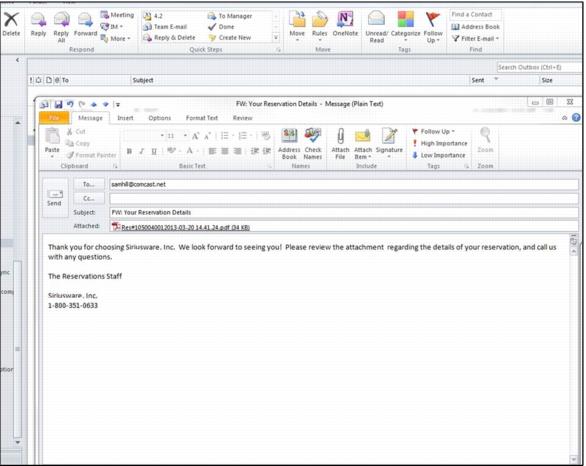
An e-mail confirmation has two parts:
1. Header/message – this is a standard form sent in all email confirmations. The subject line and boiler plate text can be edited in SysManager > Preferences > Miscellaneous > Confirmation E-Mail.
• Confirmation letter – in .PDF form as an attachment to the email. Customers must have Adobe Reader to view confirmation.
The following screen capture shows a sample e-mail confirmation message.