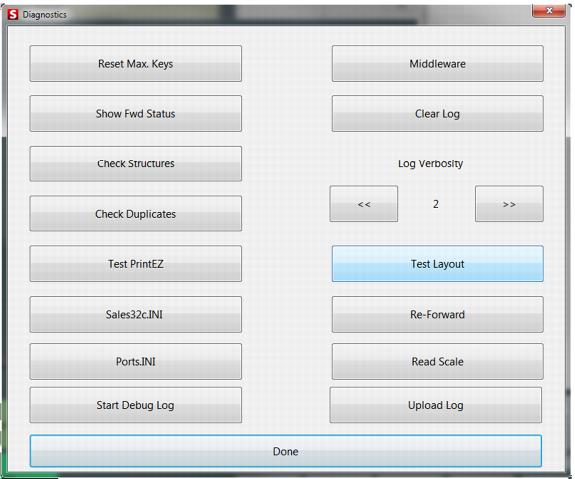
Option | Description |
Reset Max. Keys | Resets local max keys. After completing major updates to a salespoint (or if you suspect that there may be counter or duplicate issues), it is always a good idea to reset max keys. When max keys are reset at a salespoint, the salespoint checks both local data and server data to find the maximum value for all counters. This ensures that unique values are generated (reset) for all local counter values (trans_no, for example). The maximum local max key value is calculated to be the maximum non-duplicate value for the salespoint suffix in the local table. This also prevents duplicates from being generated during data re-forwarding. For more information on max keys, see the Salesware Modules, Licensing and Maintenance document. Note: Local max keys can be reset on all salespoints at the same time from SysManager > Utilities > Data Maintenance > MaxKeys on Salespts. This forces the salespoint to get MaxKeys the next time it finalizes or starts up. Note: SysManager > Data Maintenance/Max Keys On Server now processes the next last_mod values in the new last_mod columns in the department and category tables. |
Show Fwd Status | Shows the status of records in the local data tables. For a description of these tables, see the SiriusSQL Data Dictionary, available from Siriusware Technical Support. For information on how to use this information, see Finding and fixing SQL errors. |
Check Structures | Updates the local data structure (this happens automatically upon start-up of Sales, but may be useful if Sales is rarely shut down). Updates can include new fields in existing tables or the addition of entirely new tables. |
Check Duplicates | Checks for and repairs duplicate records in the local data. For information on fixing duplicates, see Finding and fixing duplicate records. |
Test PrintEZ | Provides the tools to test PrintEZ application. You can select either a printer to print to or a file to print to. |
Sales32c.INI | Enables you to view the settings in Sales32c.INI (usually located in C:\ProgramData\Siriusware\Sales). This is to help with technical support. The settings can be sorted by .INI section, name and setting (values). The settings cannot be changed from this dialog. Note: These settings do not take effect until you restart Sales. |
Ports.INI | Enables you to view the settings in Ports.INI (usually located in C:\ProgramData\Siriusware\Sales). This is to help with technical support. The settings can be sorted by .INI section, name and setting (values). The settings cannot be changed from this dialog. Note: These settings do not take effect until you restart Sales. |
Start Debug Log | Debug logging is now available in Tools > Diagnostics. When Debug logging is started for the first time a CollectingLog= setting is added to the [Preferences] section of the sales32c.INI. When Debug logging is started the sales32c_log.txt file is cleared, the sales32c.INI settings are written to the log and the Sales verbosity is set up to 5 if the verbosity is at a lower setting. If the operator does not have security rights to set the log verbosity or if Debug logging is turned off, an override security dialog appears. In addition, all calls to SalesEZ application are added to the log at verbosity 5 as well as all GUI actions/user keystrokes. When Debug logging is turned off and the salespoint has internet connectivity, the user is prompted whether the log is to be copied to the Siriusware client FTP site. |
Middleware | Provides the tools to test the middleware. |
Clear Log | Clears the Sales32c_log.txt log (usually located in C:\ProgramData\Siriusware\Sales). Note: The preferred method of generating a log file is to close out of the Sales application, delete the log file and the restart the Sales application. This button is useful when log information needs to be generated but you don’t want to close and re-start Sales because that may make it difficult to recreate the problem you are experiencing. |
Log Verbosity | Sets the logging verbosity level, which dictates the amount of logging that is written to the Sales32c_log.txt log (usually located in C:\ProgramData\Siriusware\Sales). |
Test Layout | Brings up a Layout Test Dlg dialog box. A dropdown enables the user to choose which layout they would like to evaluate. Choosing the Evaluate button will display the sample layout on the right hand side of the dialog box. |
Re-Forward | Enables you to re-forward records. For information on when to use this, see Finding and fixing SQL errors. Requires a daily code to use. You need to contact Siriusware Technical Support to obtain the daily code. |
Read Scale | Allows for getting weight from scale. |
Upload Log | This will upload a log directly to the Siriusware ftp server, thus enabling this to be attached to a FootPrint or enable Siriusware Technical Support staff the opportunity to review your salespoint’s log for errors. |