Finding and fixing SQL errors
SQL errors usually occur when there is a problem forwarding information to the SiriusSQL database, via SalesEZ, BookEZ and RentEZ applications. When SQL errors occur, the source can usually be traced by using the
Sales >
Tools >
Diagnostics >
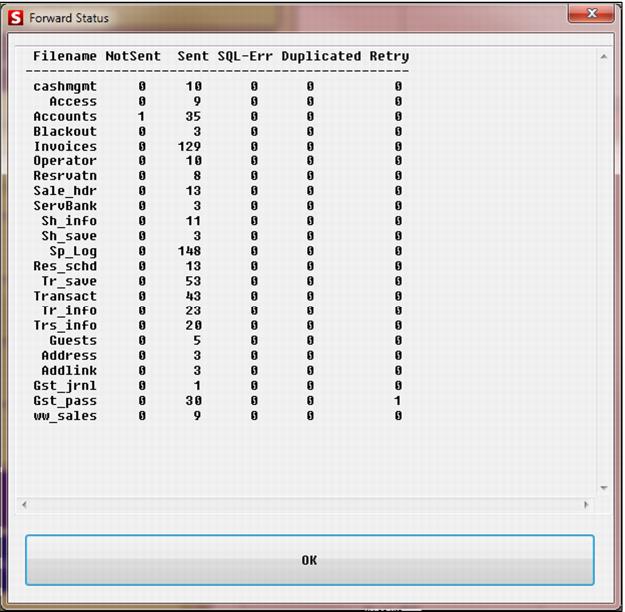
Show Fwd Status information, shown in the following screen capture. Duplicate records are a very common type of SQL error and are discussed in a separate section,
Finding and fixing duplicate records. This section provides general information about how to find and fix all types of SQL errors. SQL errors can be very difficult to trace and fix. If you’re lucky, they are spurious in nature and disappear after a reboot of Sales. Siriusware Inc. recommends that you work with Siriusware Technical Support representatives on the more serious SQL errors until you become confident enough to be able to fix them on your own.
In the above screen capture, SQL errors occurred when attempting to forward records in the
transact and
tr_info tables. If you use Helper utility to investigate these tables, you find the value of
7 in the
fwd_status field of the affected records, which means that a SQL error occurred. (See
Helper for a description of all codes that Salesware module uses in the
fwd_status field.) When SQL errors display on the
Tools >
Diagnostics >
Show Fwd Status dialog, the
Reset Sql-Err button also displays. Click this button to clear the SQL errors and restart Sales. If SQL errors continue to appear on this dialog, then you need to perform further investigation to understand the nature of the SQL errors and fix them.
The utilities that Siriusware Technical Support representatives use to find and fix SQL errors are listed and described in the following table. You can find more information about these tools in a previous section of this document,
Advanced utilities.
Utility | How to use |
Helper | With Helper 4.3 you can: • Run FoxPro commands by opening a command window and typing in commands • Open FoxPro tables (.dbf files) • Open local Sales tables and edit – the dropdown shows the most recently opened tables • Open FileSync tables and edit • Execute SQL statements like SELECT statements on local data • Edit and run a .prg program • Edit a .txt file • View a log file |
LocalDataBoss | Allows checking and repair of forwarding errors found in local salespoint data. Duplicates and SQL errors may be examined and “reset” or “retired.” Provides a convenient way to edit local data, .INI files and log files. Provides a means to perform repetitive tasks on each salespoint. These tasks are performed with “plug-in” style code snippets. Example: • Trimming file sizes of various tables • Moving, copying and deleting layouts Local Data Boss provides more capabilities than Helper utility and can be used to analyze and adjust data on multiple salespoints at the same time. |
In some cases you can avoid using these tools altogether and simply attempt to eliminate SQL errors by re-forwarding records using the Tools > Diagnostics > Re-Forward button. However, this button should be used with care. You need to obtain a daily use code from Siriusware Technical Support before using it, at which time you can also discuss your issue with a support representative.