Skim/Pull
Once a cash threshold is configured, an automated message is sent to one or more staff members when the cash intake reaches the set amount. The staff member can then do a skim of the salespoint that has reached the assigned threshold limit. Upon closeout the skim amounts are included in the overall cash totals.
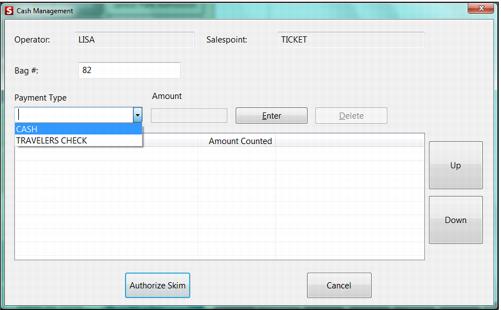
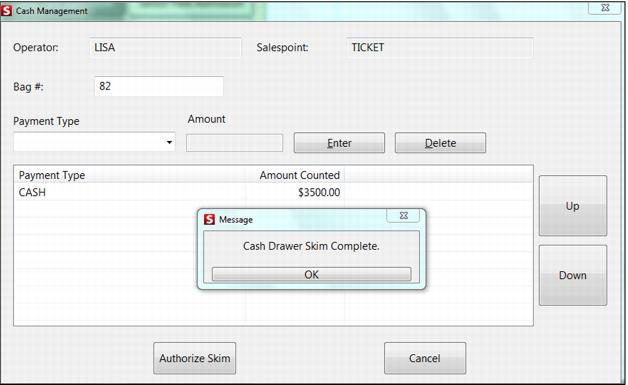
Cash Management allows the entry of a Skim. This skim activity shows a read-only display of the currently logged in operator/salespoint and the bank# (or bag#) from the operator’s current Sever (Operator) Bank withdrawal. If the operator did not withdrawal a bank that day, the field is active so that a bank# (bag#) can be entered. A bank# (bag#) entry is mandatory to complete the skim action.
The person performing the skim needs to select the payment type (with CASH being the default type because it is used 99% of the time) and enter the dollar amount.
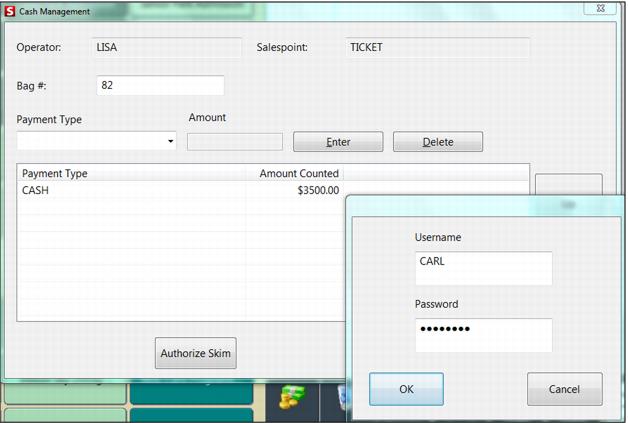
Note: that only payment types configured to Enable Cash Management shows up in the payment type selection. Once all the payment types and amounts have been entered for that particular Skim action, the operator presses an Authorize Skim button which prompts for an operator/password entry. The authorizing operator can swipe his/her log-in card or manually enter the log-in/password information. The authorizing operator must have security to perform skims.
To Perform a Skim:
1. Click on the Cash Management main action button.
2. Select the payment type. Only Cash along with those configured with Enable Cash Management are displayed.
3. Input the amount being removed
4. Select Authorize Skim
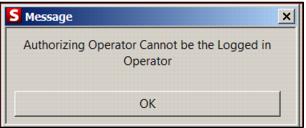
Note: The authorizing staff person cannot be the same operator logged-in to the salespoint, even if you have permission to perform a skim.
Note: If a bag number has been assigned to the operator (or salespoint if closing by salespoint), it is populated into the Bag # field automatically. The bag number can be changed, but only if the operator has security to do so.
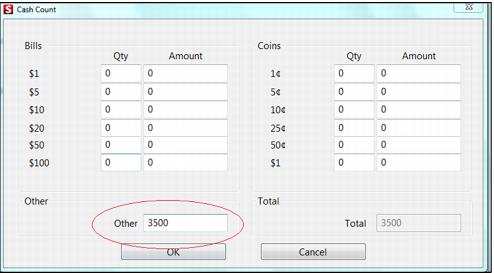
5. Enter the amount for the payment type selected. If the CashCount functionality is enabled, the ability to enter the number of coins and bills is possible, or alternatively, a total cash amount can be entered.
6. Once skim entries have been made as necessary, press the Authorize Skim button. This action forces the log-in of an operator with the security to Perform Skims and as a security measure the person for whom the skim is being performed and the authorizing operator cannot be the same person/log-in.
Note: The currently logged in operator and the authorizing operator CANNOT be the same! This is an audit control so that:
• The operator responsible for the cash drawer is a witness to the skim action
• A vault operator doesn’t accidentally log-in to a salespoint to perform a skim (for instance, if the operator working at that salespoint left for lunch) and authorize the skim as this would result in the vault operator having the skim recorded under his/her name during closeout rather than the operator who has performed the cash transactions.
Note: A bag number other than “0,” is required when performing a skim. But, this feature can be turned off by inserting the following Sales32c.INI [Preferences] setting:
AllowZeroBagNo=TRUE
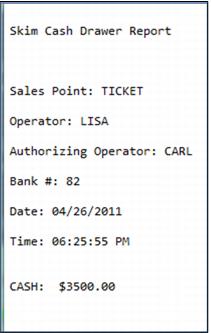
Once the skim action has been authorized, two receipts print that include the date/time, salespoint/operator, payment types and amounts, authorizing operator who performed the skim action and bag #. This allows the operator responsible for the drawer to keep a receipt and the operator performing the skim to keep a receipt. Additionally, Sales writes a record to the CashMgmt table for each payment type and amount that was skimmed. The fields to populate in this table include ID, Entry Type = 2 (Skims), Operator, Salespoint, Amount, Payment Type, Authorizing Operator, Bank# (Bag#) and Date/Time. If the salespoint is a Kiosk that has a bill acceptor, then the Bill Quantity is also populated.
Note: For the IHC Kiosk: When an operator empties the cash from Kiosk, he/she hits a button that would make a Skim entry into the CashMgmt table for the entire contents of the bill hopper. Finally, when a Skim has been performed (which = empty bill hopper for the kiosk), a sp_log entry is written specific to the skim action. These sp_log entries are used to help generate automated notifications to email/SMS contacts through the Siriusware MessengerService.