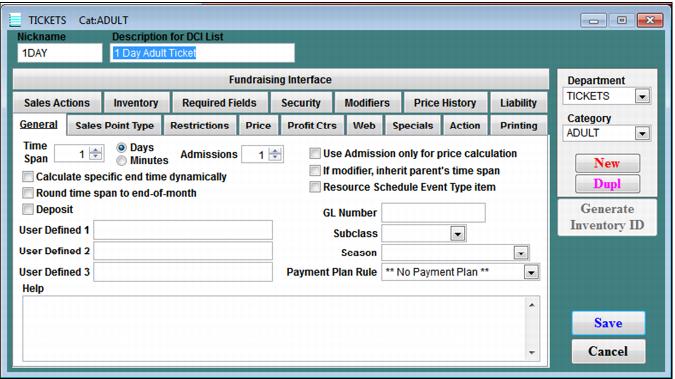
Setting | Description |
Calculate specific end time dynamically | See Salesware Dynamic Pricing and Salesware Rentals. |
User Defined | A twenty-five character field primarily used in multi-key lookup functionality. Note: If you plan to use multi-key lookup in Sales, this field can be used to assign unique identifiers to products. See Multi-key lookup. Often used in conjunction with the Retail module to enhance inventory item lookup from the keyboard. Note: Standard Salesware reports do not use this field. The field is available for reporting only via a custom filter or when developing custom reports. |
Subclass | See Salesware Retail. |
Season | See Salesware Retail. |
Deposit | Makes a deposit required when item is sold. Used to configure “deposit items” used only for collecting deposits – not to require a deposit on a specific item. Used only for very specialized applications. Contact Siriusware Technical Support before using. Warning: Serious consequences to data may occur if not used correctly. |
GL Number | A twelve character field that can be used for internal purposes (such as generating custom reports based on this field). Note: Standard Salesware reports do not use this field. The field is available for reporting only via a custom filter or when developing custom reports. Profit centers are often used for GL reporting. |
If modifier, inherit parent’s time span | Modifiers often need to inherit the same Time Span as the main item. |
Round time span to end of month | Rounding Time Span to the end of the month is useful for products that are valid for longer periods of time. Typically used for annual memberships that are valid to the end of the month. |
Time Span | The Time Span of a product is the length of time that the product can be used. Time Span is used to set the valid date range or time range of the product. The Admissions field is used for reporting to count the number of skier days, museum visits, park entrances, etc., that the product is worth. The actual control of the number of entrances is done via scanning (GateKeeper, ScanMan or salespoint scanning of barcodes) and is set within the various uses and points fields within the access templates and pass action specifics. You can select whether the Time Span entry represents Days or Minutes. Minutes are used primarily to represent a Time Span that is a fraction of a day (e.g., 240 minutes would represent a four-hour Time Span). |
Admissions | Admissions are a way to track your visitor count. Typically, a 1-day ticket item would be set to Admissions = 1. A 2-day ticket would be set to Admissions = 2. Setting admissions on appropriate items allows you to obtain a count of how many visitors you have during any given range of time (this is done through the Admissions Report in ReportManager). If Admissions is 2 and Time Span is 5, then the item is good for two admissions during the five days. The default value of this field is 0. If Admissions is left at 0, the item is not included in the Admissions Report. Typically, non-ticket items (Retail module items, Food Service module items, etc.) do not require an Admission count, so are left at 0. Note: If Admissions for a single product are greater than 1 (a multi-day product), you need to select whether to use the Flat Rate or Calculate method on the Price tab to determine the product’s price. |
Use Admission only for price calculation | This check box is useful if you have multi-day items that: 1. Do not have true admissions associated with them, and 2. Use the Calculate method of pricing on the Price tab. Example: You may have a ski helmet rental item that allows users to rent for two days. It you are using the Calculate method of pricing, you must set Admissions to 2 in order for the pricing to calculate correctly. However, a helmet rental does not reflect a true admission (visitor count), and you may not want it to be included on the Admissions Report. If not, you can check this check box, and the helmet rental item does not contribute to the Admission Report totals. |
Help | Useful in E-Commerce module. See Salesware E-Commerce. Also, displays in Sales with a right-click. |
Resource Schedule Event Type Item | Use this check box if the item is to be used in conjunction with Resource Scheduling functionality. |
Payment Plan Rule | If the item is and access based and is payment plan eligible, it can have a Payment Plan Rule assigned. See the Payment Plans document for more information. |