Setting | Description |
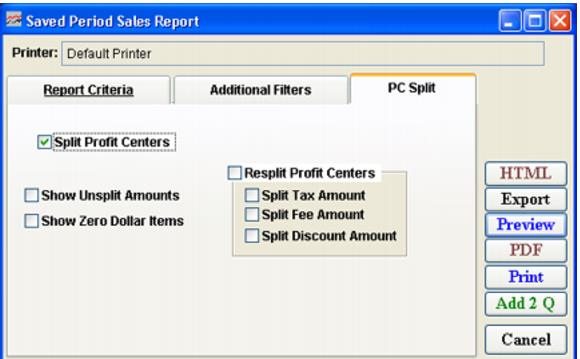
Split Profit Centers | Select this to activate Split Profit Centers reporting options. |
Show Unsplit Amounts | Select this to include a summary of the amounts allocated to taxes, fees and discounts, etc. |
Show Zero Dollar Items | Select this to include $0 items. Note: Some resorts like $0 items to be grouped by profit center in order to calculate yield based on quantity. If you want to report on $0 items, each item must be assigned a profit center, or None if no profit center. Otherwise, the items with no profit center all show up in the first profit center. |
Resplit Profit Centers | Select this to re-allocate historical sales to current profit centers in the report. Note: Re-splitting profit center amounts does not change the actual money allocated to each profit center – it simply shows you how the money would have been allocated given that your profit center split was defined that way. Note: Transactions that do not have items associated with them cannot be re-split because there is no item from which to get the split information. These transactions show in invoices with **TRANS** in the Department, Category and Item fields – they are created in SysManager or any time a payment is applied to an invoice through Sales without selling an item. |
Split Tax Amount | Include the tax amount in the money to be re-split.* |
Split Fee Amount | Include the fee amount in the money to be re-split.* |
Split Discount Amount | Include the discount amount in the money to be re-split.* |