Sample Locker auto-sale Rule
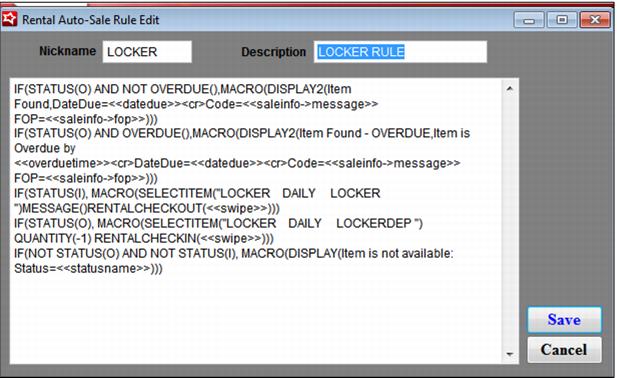
IF(STATUS(O) AND NOT OVERDUE(),MACRO(DISPLAY2(Item Found,DateDue=<<datedue>><cr>Code=<<saleinfo->message>> FOP=<<saleinfo->fop>>)))
IF(STATUS(O) AND OVERDUE(),MACRO(DISPLAY2(Item Found - OVERDUE,Item is Overdue by <<overduetime>><cr>DateDue=<<datedue>><cr>Code=<<saleinfo->message>> FOP=<<saleinfo->fop>>)))
IF(STATUS(I), MACRO(SELECTITEM("RENTALS LOCKERS DAILY ")MESSAGE()RENTALCHECKOUT(<<swipe>>)))
IF(STATUS(O), MACRO(SELECTITEM("RENTALS LOCKERS DEPOSIT ") QUANTITY(-1) RENTALCHECKIN(<<swipe>>)))
IF(NOT STATUS(O) AND NOT STATUS(I), MACRO(DISPLAY(Item is not available: Status=<<statusname>>)))
The sample rule above specifies the sale of exactly one item based on the status of the inventory. But, it is possible to prompt the operator to select from a list of items. For instance, if the rental items offered to customers include: Daily Rental, Weekly Rental and Season Rental, the Rental Auto-Sale Rule for the status of “I” could be altered similar to this:
IF(STATUS(I), MACRO(SELECTITEMFROMLIST("RENTALS LOCKERS DAILY ","RENTALS LOCKERS WEELKY ","RENTALS LOCKERS SEASON ")MESSAGE()RENTALCHECKOUT(<<swipe>>)))
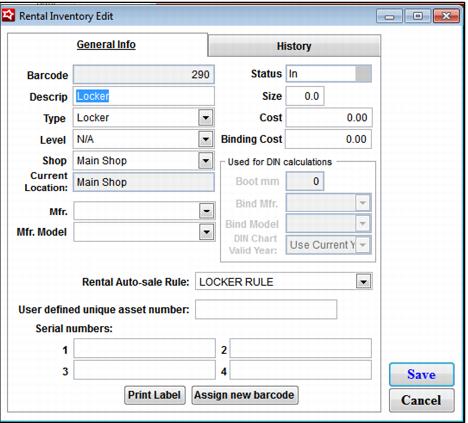
8. Configure the rental inventory (SysManager > Activities > Rental Activities > Rental Inventory) with the appropriate Descrip, Level, Type, Shop (rental shop), optional: asset # (unique number that identifies the equipment) and Rental Autosale Rule.
Note: It is good practice to enter the locker number into the description (if possible) and use the locker number as the asset # in order for the locker number to show in Sales. You may use the <saveinfo->rentitem> setting in ItemDesc and/or ItemDescFull.
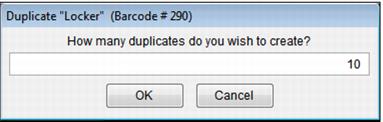
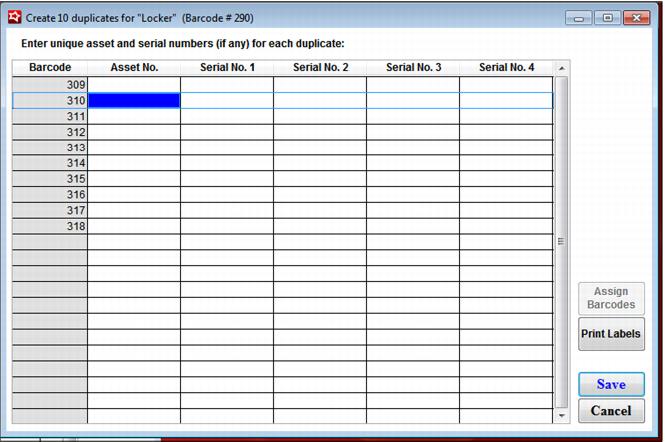
9. Once the record looks good, duplicate the entry the desire amount of times to easily assign unique asset numbers to the duplicated inventory (each locker).
10. Once the asset numbers have been entered, press the Assign Barcodes button, and then Save.
Example:
Multiple types of Lockers – small, medium and large
Note: The appropriate rule has been assigned to each inventory item.