Installing Pool Service
If you are using less than twenty salespoints, Siriusware Inc. recommends that you run Pool Service on the same computer where you have SQL Server installed. If you have twenty or more salespoints, it is installed on a separate computer.
Note: Many servers now have multi-core processors. You can install one instance of SalesEZ or BookEZ application per processor (core), as specified in the
Salesware System Architecture and Specifications document. For information on how to install multiple instances of SalesEZ or BookEZ application, see
Special instructions for installing multiple instances of Pool Service.
You need administrator privileges on the computer where Pool Service is installed and you need write privileges to the Siriusware\Install directory (the Pool Service installer writes a file named SiteDefaults.INI to the Siriusware\Install directory). Before running this installer, you must have already installed SQL Server and the Server Files installer and you must have already installed Common Files application on the computer where you are installing Pool Services.
Note: The computer where Pool Service is installed must have a static IP address. You must have already assigned this address to the computer where Pool Service is being installed before running the installer.
The Pool Service installer:
• Creates the \ProgramData\Siriusware\Pool and \Program Files\Siriusware\Pool directory and associated files.
• Installs desktop shortcuts to SalesEZ, BookEZ, RentEZ and TallyEZ applications; training shortcuts to each of these can be installed as well.
• Installs the ODBC that enables Pool.exe to “talk” with the SiriusSQL database.
• Creates and populates the SiteDefaults.INI file in the Siriusware\Install directory.
To run the Pool Service installer:
1. Ensure that Common Files application is already installed.
2. If you are installing Pool Service on the server computer where Server Files application is already installed, you can run the Install_Siriusware_PoolService_43xx.msi installer directly from the \Siriusware\Install directory. If you are accessing the \Siriusware\Install directory over the network, you can either run the installer over the network or copy the installer to the desktop and run it from there. Siriusware Inc. recommends that you run the installer over the network. If you later modify the installation, Windows looks for the installer in the location from which it was originally run. It might inadvertently get deleted from the desktop.
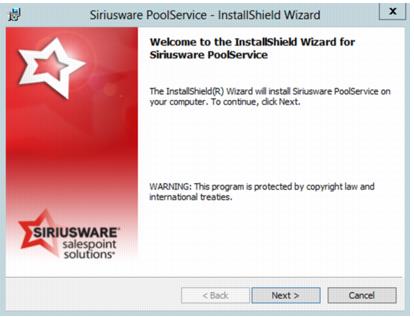
3. You are presented with the following dialog. Click Next.
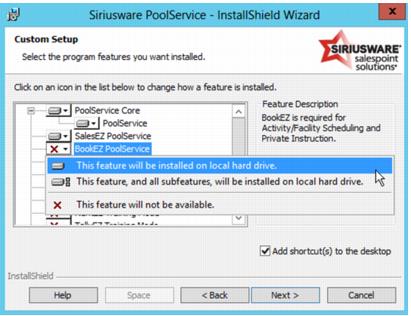
4. You are presented with the following dialog. Depending on which EZ’s you plan to use, select which Pool Services you want to install. These EZ’s correspond to the update files that you copied into the
\Siriusware\Updates folder earlier (see
Running the Server Files installer). You can add the training mode EZ’s, but you are required to install a training database before you can use these (see
Installing a training database). SalesEZ application is always installed, because it is used by salespoints. You can select either
This feature will be installed on local hard drive or
This feature, and all subfeatures, will be installed on local hard drive. The two options are equivalent. Click
Next.
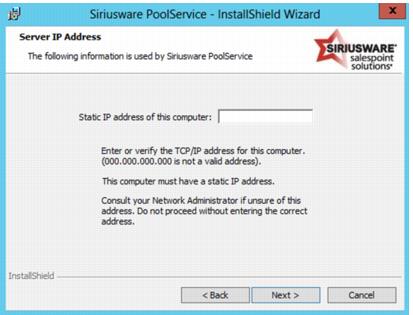
5. You are presented with the following dialog. Type in the static IP address of the computer on which you are installing Pool Service. Do not use 127.0.0.1 unless all Salesware software is being installed on one computer only (very unlikely). Click Next.
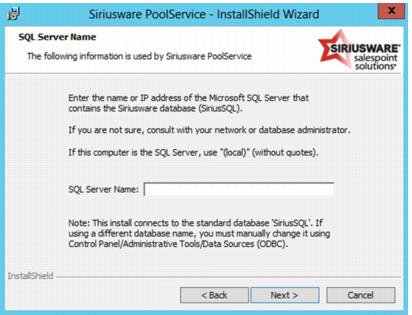
6. After Pool Service installation begins, you are presented with the following dialog. Enter the name or IP address of the SQL Server that contains the Siriusware database. If the computer on which you are installing Pool Service is that computer, choose or type (local) or the actual name of the SQL Server computer (the latter is recommended.) This information is used to create the ODBC connection. Click OK. Pool Service installation continues.
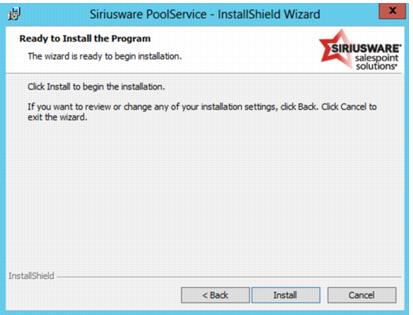
7. You are presented with the following dialog. Click Next to install Pool Service.
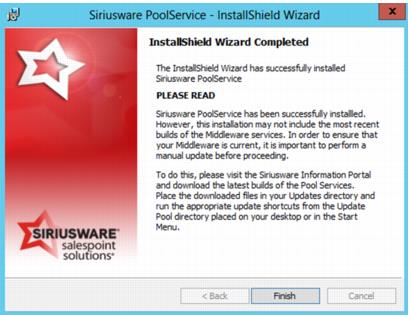
8. When Pool Service completes, you are prompted to check for updates to Middleware. Follow the instruction given in the following screen capture, and then click Finish.
After Pool Service is installed, check the SiteDefaults.INI file that Pool Service created in the Siriusware\Install folder. See the following screen capture for an example of how it is populated after installation by Pool Service. (If SiteDefaults.INI doesn’t exist, then you did not have write permissions to the Siriusware\Install folder when you installed Pool Service and create this file manually.) SiteDefaults.INI is not required, but makes subsequent installs much easier. SiteDefaults.INI is used by installers that install Salesware applications that use the middleware (EZs) to find the middleware servers where the EZs “live.” It is also used by the Sales installer to find the IP address of the credit card server. The credit card server must have a static IP address and this address must be manually added to the SiteDefaults.INI file using the setting CreditCardServer_IP=xxx.xxx.xxx.xxx (do not include the port number). If you do not do this, then the IP address in the Sales32c.INI file is set by default to 000.000.000.000:port_number.
Note: FileSync application needs to be installed and configured before RentEZ functions properly. Installation instructions for FileSync for the Food Service module are found in the Salesware Food Service document. Installation instructions for FileSync for the Rentals module are found in the Salesware Rentals document.
Pool Manager services integrate with PoolMonitor Service to improve functionality and provide better status and easier control via GUI interface to any Siriusware apps distributed as a service. With this, refinements have been added for integrating better with Service Monitor. Startup is now cleaner and instances may be added or killed from the monitor and activity can be returned. Pool Service tries three times to start, with five seconds in between. If the connection to the database is lost, it then halts service.