How to print a report
If you have one report to print and the preview is acceptable, click the Print button and the report is printed.
How to select a printer:
To select a printer for your reports, double-click the Default Printer field. A window with printers and the currently selected printer is displayed (which is the printer that is assigned as the default printer for this computer in Windows). Once a different printer is selected in this window, SysManager “remembers” and uses this as the default printer for reports until it is changed.
How to use special options to print:
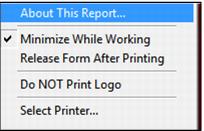
If you position the mouse in the blank space in the report window above the Export button and right-click, a menu with several options is displayed. All settings that appear here are per report for the currently logged in operator. Whatever is set for a particular report and a particular operator is saved until it is changed here.
• About This Report - Select this to display the title of the current report in a small box at the top of your screen.
• Minimize While Working - Select this to minimize the criteria form while the data is being gathered to print.
• Release Form After Printing - Select this to make the form for this report disappear once you have printed the report. If this selection is not checked, the form for this report returns after printing, which is handy if you are printing more than one copy of a particular report.
• Do NOT Print Logo - Select this to suppress the printing of your company logo on this report (in case you want a quick report and you’re printing to a printer that takes a long time to print graphics). For the steps you follow to add a logo to your reports, see
How to insert pictures/logos into Siriusware reports.